This section allows the admin to control how Product Labels behave across the store, including where they appear and how they are displayed.
Table of Content
Features
- The admin can enable or disable Product Labels from the configuration panel.
- Admin can create unlimited product labels.
- Labels can be scheduled using From Date and To Date.
- Labels can be applied to all products or selected products using conditions.
- Unlimited text or image labels
- Why you need Product Labels for Magento 2 ?
- The Product Labels extension helps store owners highlight important products such as Sale, New, Hot, or Limited Offer in a clear and attractive way.
- It allows merchants to draw customer attention instantly to promotional or special products, which helps improve engagement and conversions.
- The extension enables admins to display labels based on product conditions, such as category, price, stock status, or other attributes.
- Product labels help customers quickly identify offers and product status while browsing category and product pages.
- Admins can customize label design using text or images to match the store’s branding.
How to Install
Step 1 : Download the zip file
Step 2 : Extract it and put into /app/code/
Step 3 : Open Cli in magento directory and follow the below commands:
- php bin/magento module:enable Vdcstore_AgeVerification
- php bin/magento setup:upgrade
- php bin/magento setup:di:compile
- php bin/magento setup:static-content:deploy
- php bin/magento cache:clean
- php bin/magento cache:flush
CLI Commands :
Steps:
- Configuration
- How to Install
- Configuration:
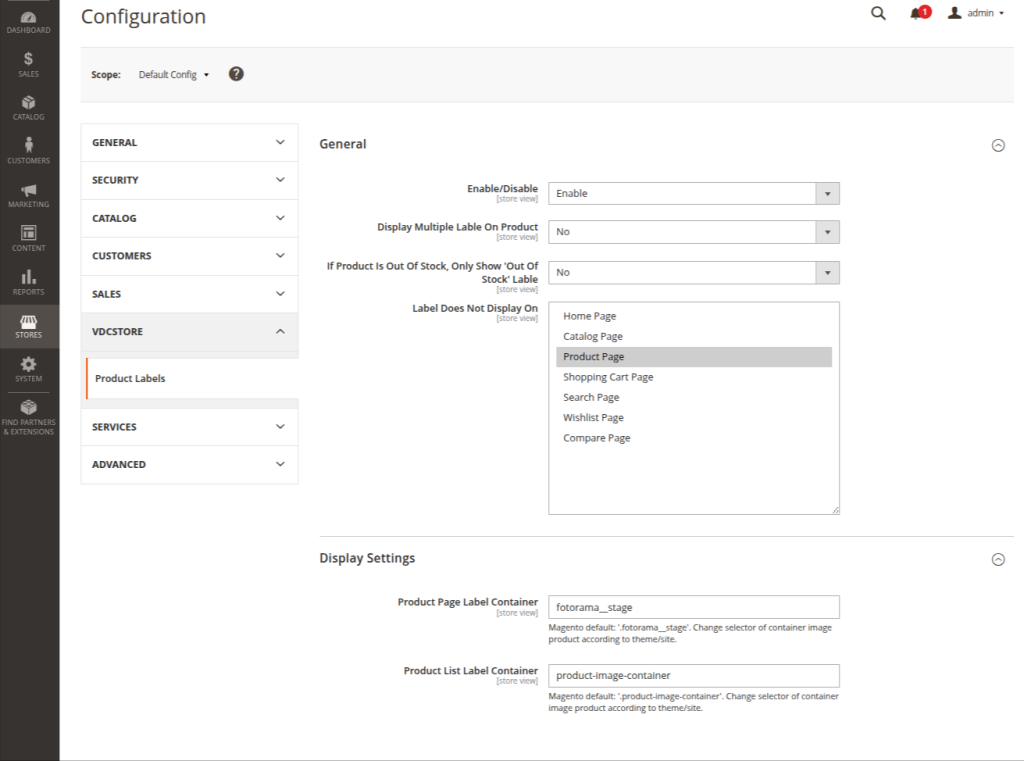
- Configuration Login to the Admin Magento,Choose Stores > Configuration > VDCSTORE > Product Labels.
- General Configuration :
- Enable / Disable
- Purpose: Turns the Product Labels module ON or OFF.
- Options:
- Enable – Product labels will be applied on products.
- Disable – Product labels will not appear anywhere on the store.
- Note : Disable this if you want to temporarily stop showing all labels without deleting them.
- Display Multiple Label On Product
- Purpose: Controls whether more than one label can be shown on the same product.
- Options:
- Yes – Multiple labels (e.g. “New” + “Sale”) can appear together.
- No – Only one label will be displayed per product.
- Note : If multiple labels overlap visually, set this to No.
- If Product Is Out Of Stock, Only Show “Out Of Stock” Label
- Purpose: Ensures that when a product is out of stock, only the Out of Stock label is shown.
- Options:
- Yes – Other labels will be hidden if product is out of stock.
- No – All applicable labels will still be shown.
- Label Does Not Display On
- Purpose: Selects the pages where product labels should NOT appear.
- Available Pages : Home Page , Catalog Page ,Product Page, Shopping Cart Page, Search Page,Wishlist Page ,Compare Page
- Example: If you select Compare Page, labels will not appear on product comparison pages.
- Display Settings
- These settings control where the label is injected in the HTML structure.
- Product Page Label Container
- Purpose: CSS selector used to position labels on the Product Detail Page.
- Default Value: fotorama__stage
- Description: This is Magento’s default product image container.
- Product List Label Container
- Purpose: CSS selector used to position labels on product listing pages (Category, Search, etc.).
- Default Value: product-image-container
- Description: This is the default container for product images in Magento lists.
- Product Page Label Container
- Product Labels Grid (Listing Page)
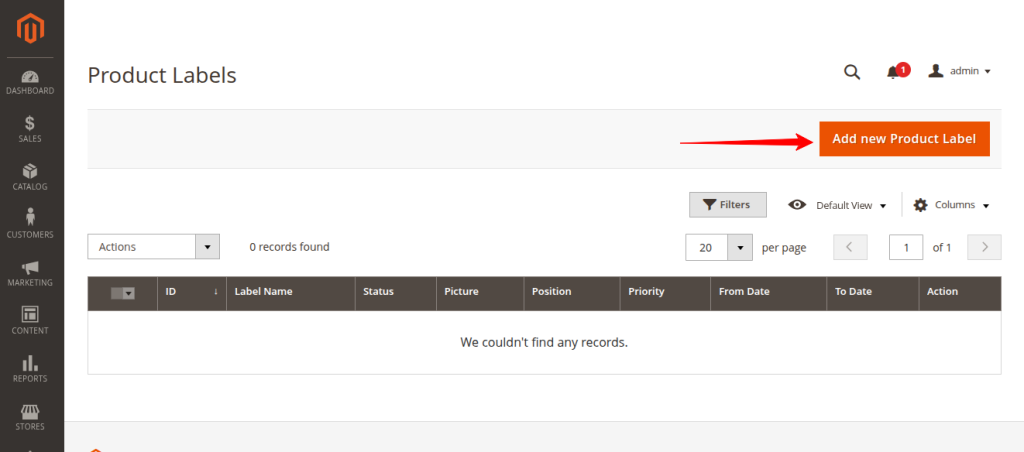
- click on Catalog tab → select Product Labels.
- Click on Add new product label to create new label.
- A list of all created product labels
- Columns like:ID,Label Name,Status,Picture,Position,Priority,From Date / To Date,
- Use this page to manage all labels from one place.
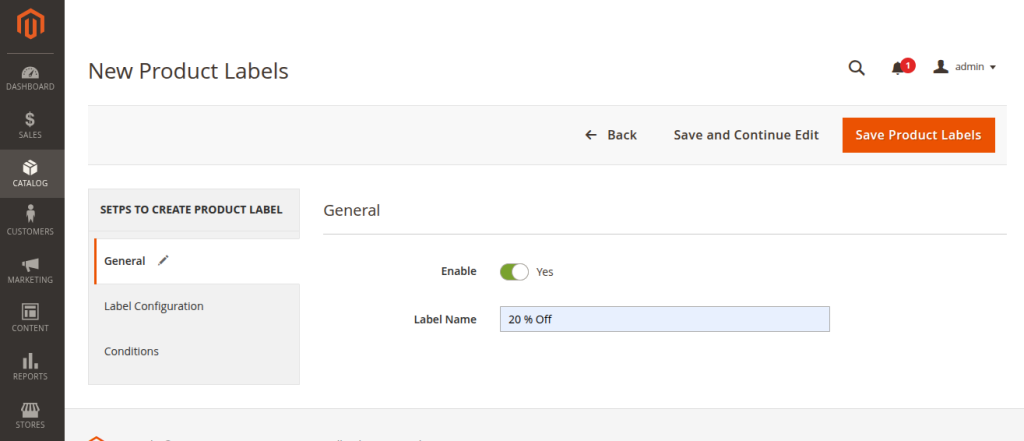
- When you click on Add new product label then this open.
- Enable field in general tab :
- Yes – Label is active and can appear on products
- No – Label is saved but will not display
- Label Name
- Example: 20% Off, New Arrival, Hot Deal
- Enable field in general tab :
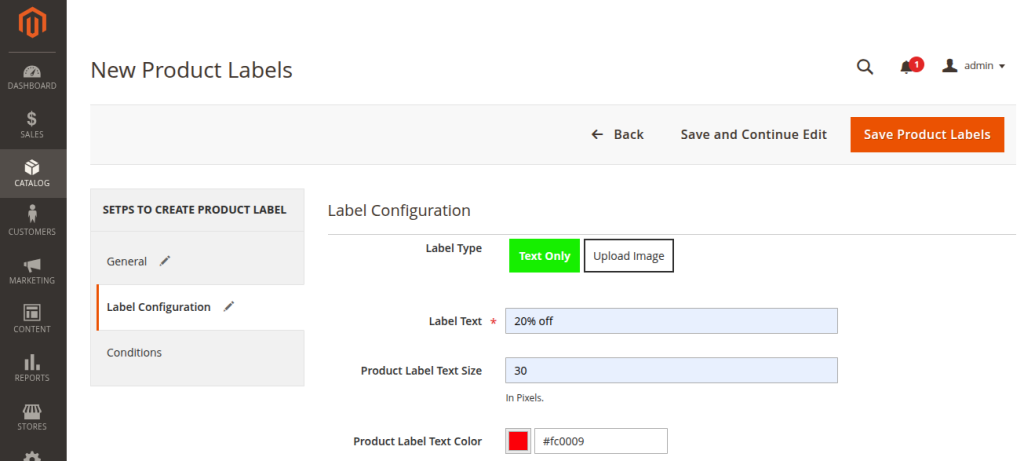
- Label Configuration – Label Type
- Label Type : text and upload image
- If you select text only then it show only text on that selected page.
- If you selct uploa image option then only image will display on that page.
- At a time only text or image display on page.
- Label Text : Text displayed on the product. For Example : 20% off
- Product Label Text Size : set the Font size in pixels.
- Product Label Text Color : Choose text color using color picker or hex code.
- Label Type : text and upload image
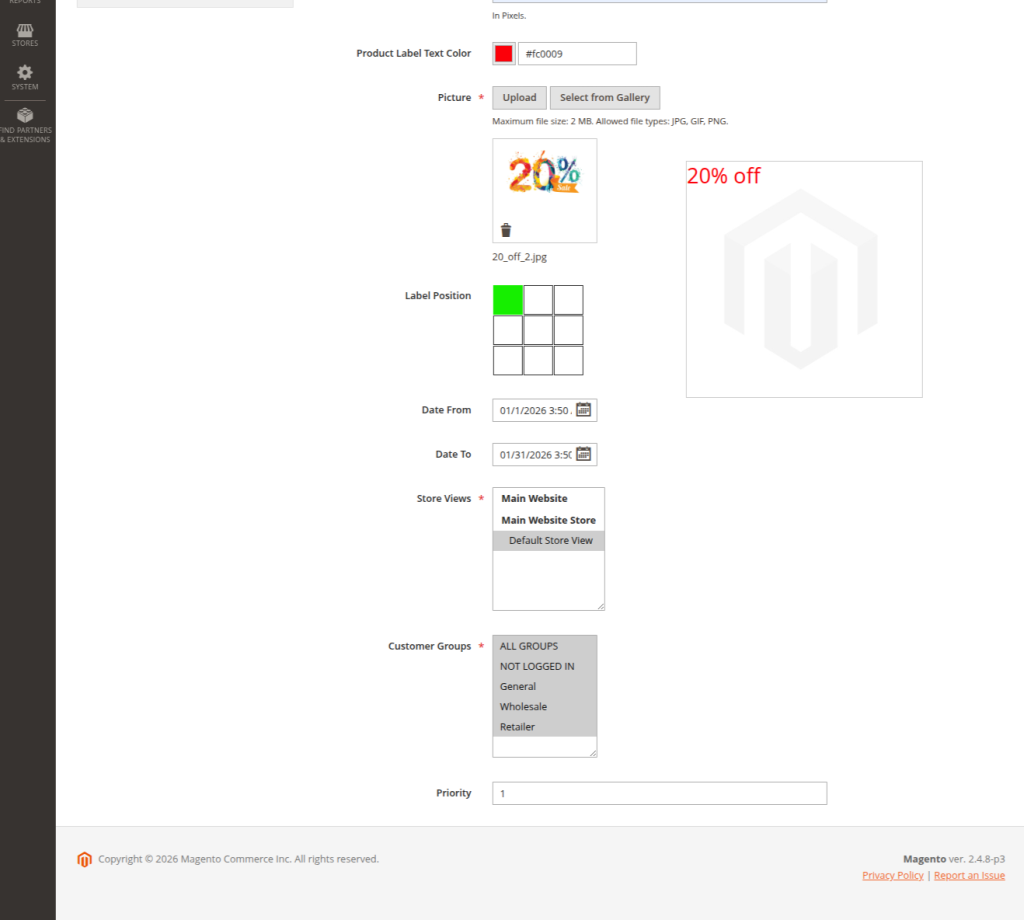
- Label Configuration – Image Upload
- Picture : in this fields you can Upload label image Or select from media gallery,you can upload JPG, PNG, GIF File types.
- Grid of 9 positions:
- Top Left , Top Center , Top Right , Middle Left, Middle Center, Middle Right, Bottom Left, Bottom Center, Bottom Right
- Date Settings:
- you can set from date and to date
- Date From : Start date & time for label display
- Date To : End date & time for label display
- Customer groups :
- Here you choose which customer group visiblw this product label.
- priority:
- here you can give priority to labels.
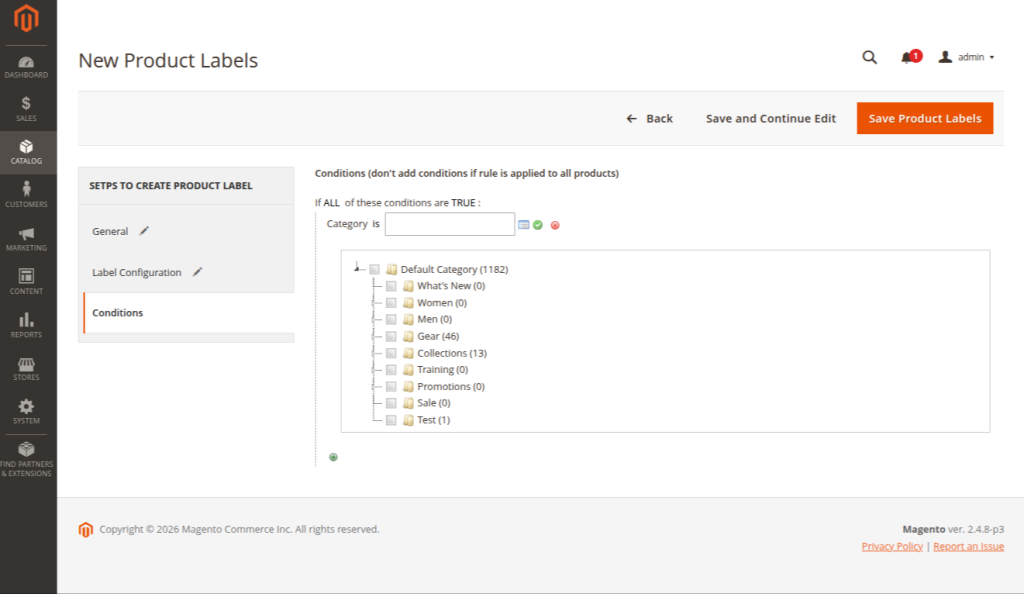
here you can give condition base on your requirnments.
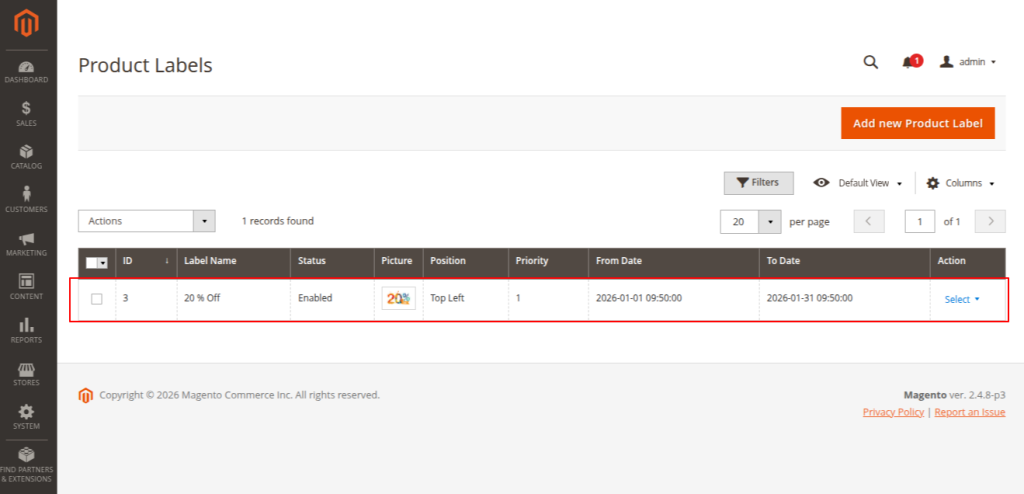
- After save all details you see your all product label list.

- Now you can select product label and click on action and click enable to enable that product label.
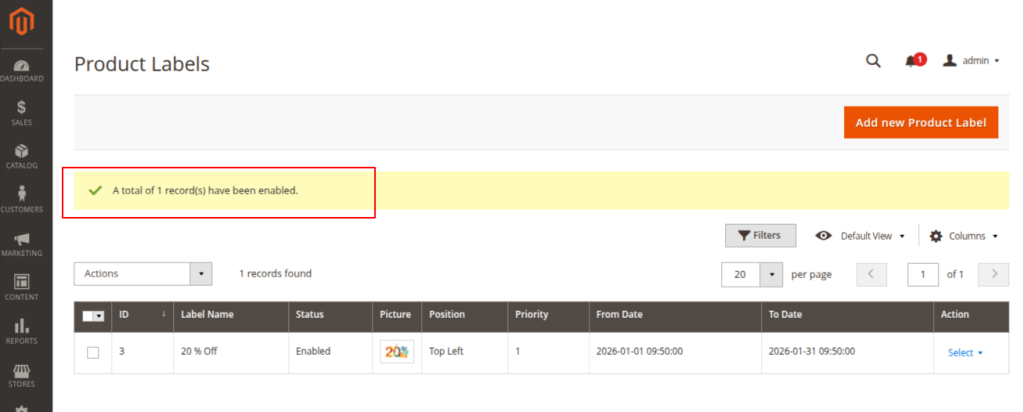
- You can see when you enable that label you can see message like as per your reqirnment records have been enabled.
- you can also disabled and delete product label.
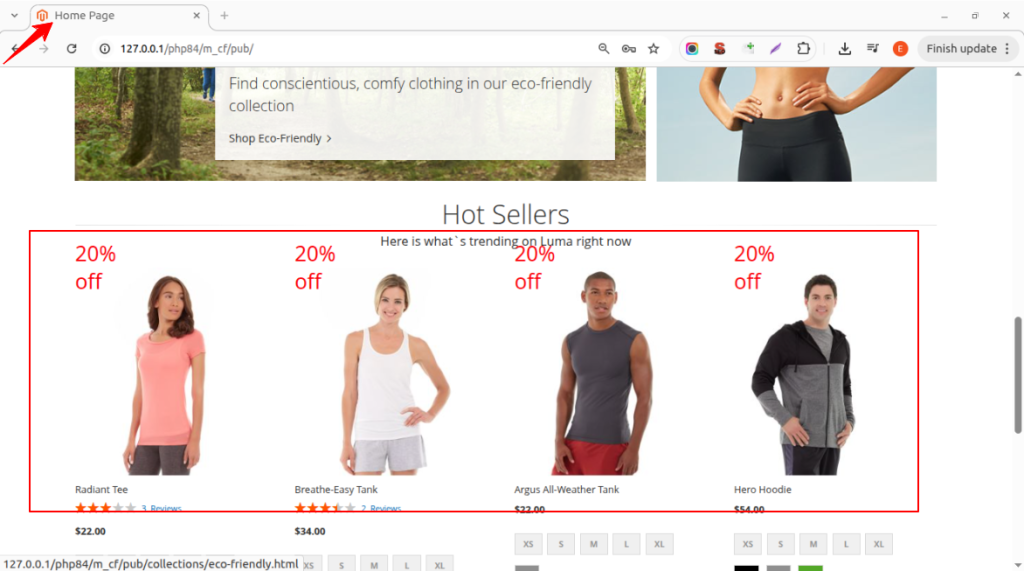
- When you select text only then it dsiplay text only according to your label position.
- here label position set top left then in home page show top left side.
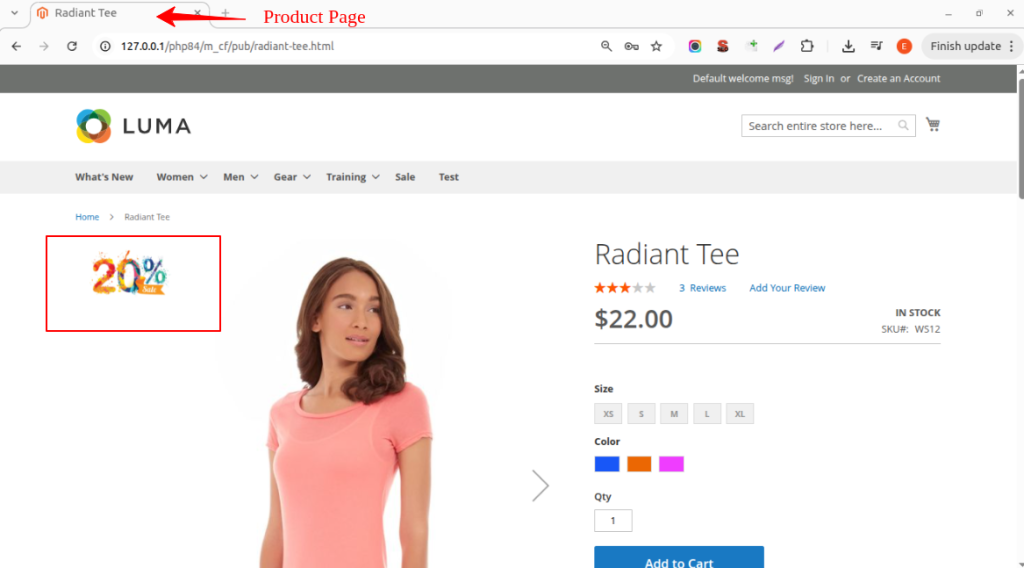
- When you select image upload then it display image according to your label position.
- same all pages display except selected page in labels does not display on pages.