 Shopify Migration



Magento 2 Purchase Order
 Trending

- for Magento 2.4.x (CE, EE)

This powerful extension allows you to create and manage purchase orders with customizable approval workflows based on purchase order.
This powerful extension allows you to create and manage purchase orders with customizable approval workflows based on purchase order.




User Guide
Our seasoned team at VDC Store (Hyperlink: https://www.vdcstore.com/) boasts extensive experience in developing robust and innovative extensions that seamlessly integrate with your Magento 2 platform. We focus on enhancing user experience and optimizing performance, ensuring our extensions cover a wide range of functionalities. With our expertise, we guarantee that our solutions not only meet but exceed the evolving demands of your e-commerce business.
Features
- Set a default prefix for purchase order numbers to maintain consistent records.
- Assign a default supplier for purchase orders placed through the front end.
- Send quotations and purchase order emails directly to suppliers for quick communication.
- Download quotations and purchase order details separately in PDF format for easy documentation.
- Create additional custom attributes for purchase order products to capture specific data.
- Efficiently manage incoming shipments and products from various suppliers.
- Use quotation notes to share important information or special instructions with suppliers.
- Create new purchase orders for any supplier directly from the admin panel.
- Automatically confirm quotations when orders are placed from the front end.
- Select and assign a default supplier to products, streamlining the procurement process.
Steps:


Extension Installation
- Download the zip file
- Extract and put it into /app/code/
- Open Cli in the Magento directory and follow the below commands:
- php bin/magento s:up
- php bin/magento s:d:c
- php bin/magento s:s:d -f
- php bin/magento i:rei
- php bin/magento c:f
- php bin/magento cron:install
- php bin/magento cron:run
Configuration
STEP 1
- Login to Magento Admin and redirect to Stores > Configuration > VDCSTORE extensions >Purchase order.
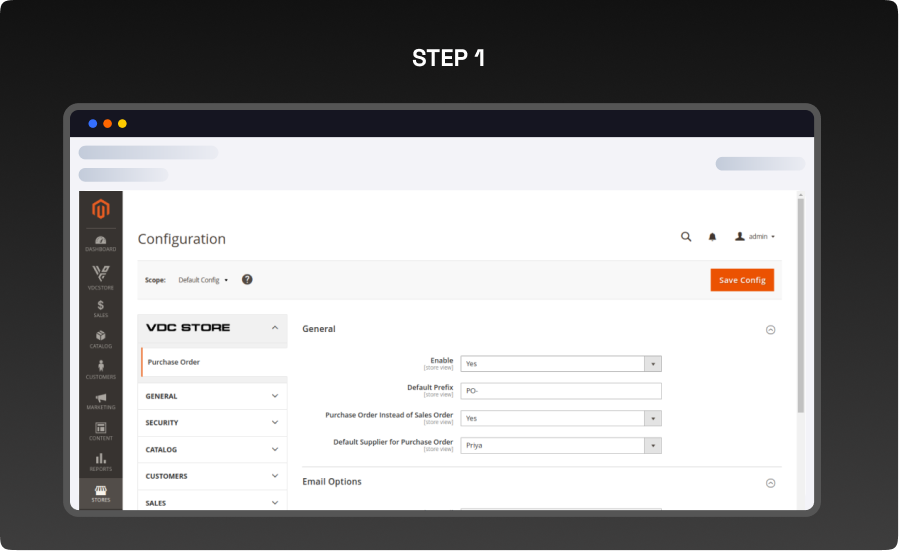
- You can enable/disable the extension.
- You can set the prefix for the purchase order ID number.
- You can decide if you want to select “Purchase Order” instead of “Sales Order”
- You can set the default supplier while ordering from-front end.
- You can enter the sender email.
STEP 2
Manage Supplier
- Navigate through Vdcstore > Purchase Order > Manage Suppliers > Add Supplier.
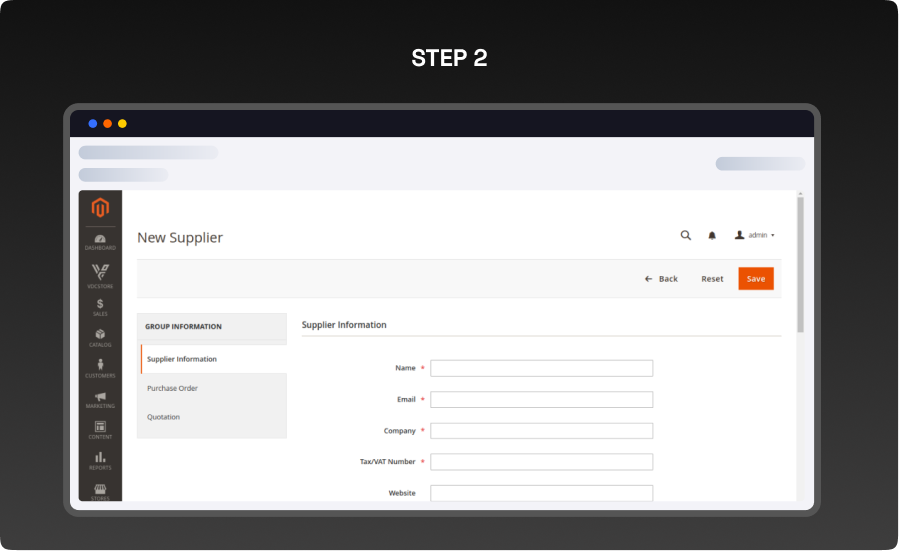
- You can create a new supplier and enter the supplier details as shown in the screenshot
STEP 3
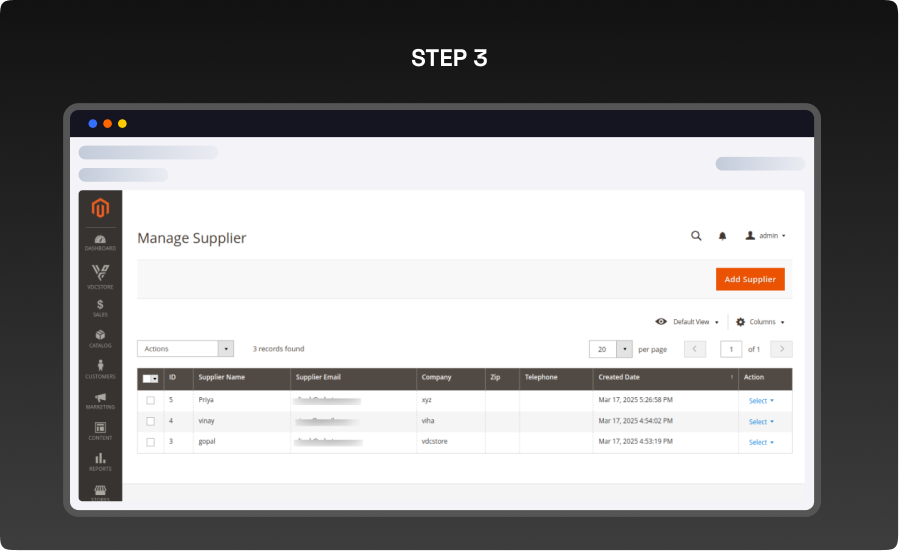
- You can view the created suppliers and manage them from here.
STEP 4
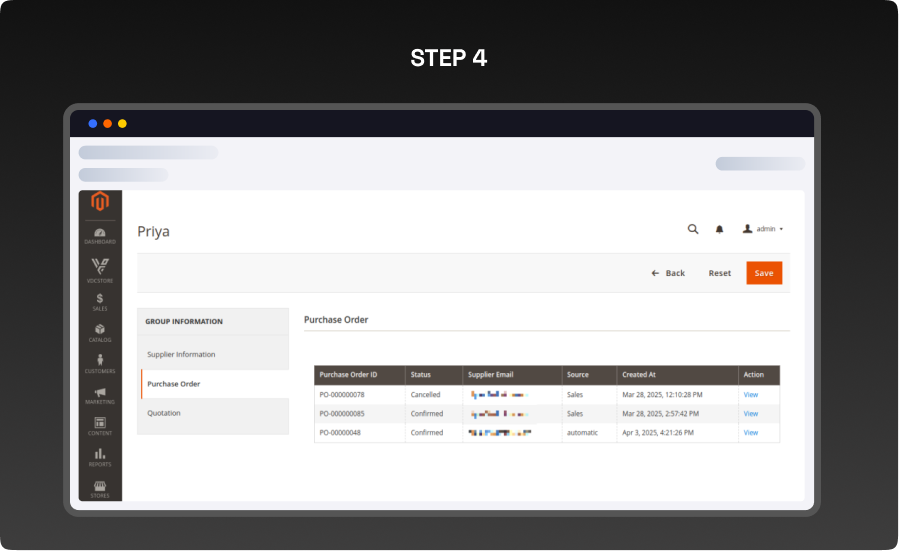
Supplier-Purchase Order:
- The admin can see the purchase orders of the suppliers in this section for its quick management.
STEP 5
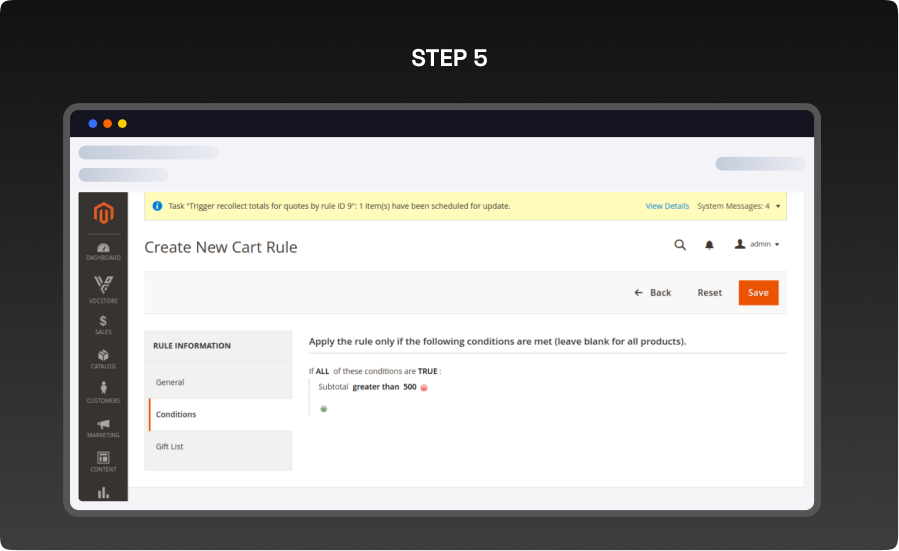
Supplier-Quotation:
- Admin can see the quotation assigned to the supplier as shown here.
STEP 6
Manage-Quotation
- Navigate to Vdcstore > Purchase Order > Quotations > Create New Purchase Order
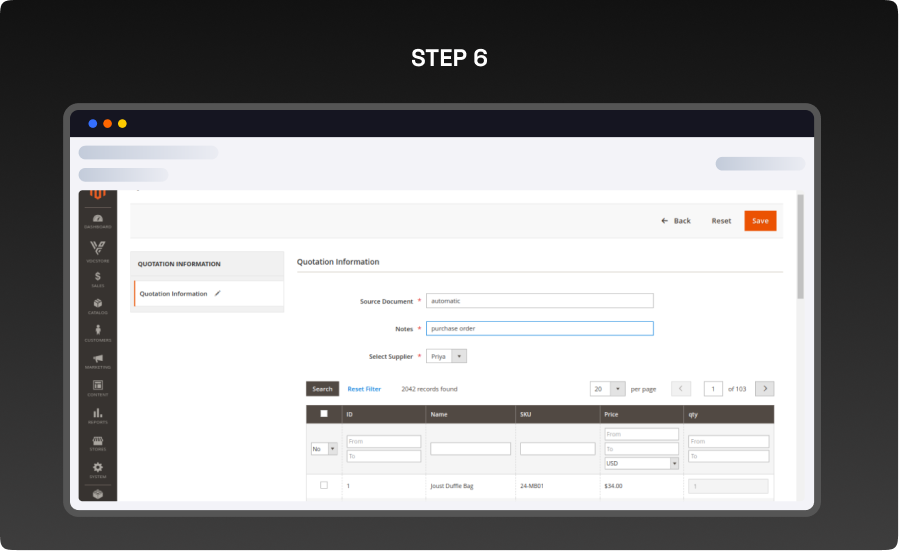
- You can create a Manual purchase order from the admin side as displayed in the picture.
- Source Document Enter the name of the source of this purchase order. the source name will become MANUAL or else AUTOMATIC.
- Select Supplier : You can select a supplier from a dropdown menu.
STEP 7
Frontend
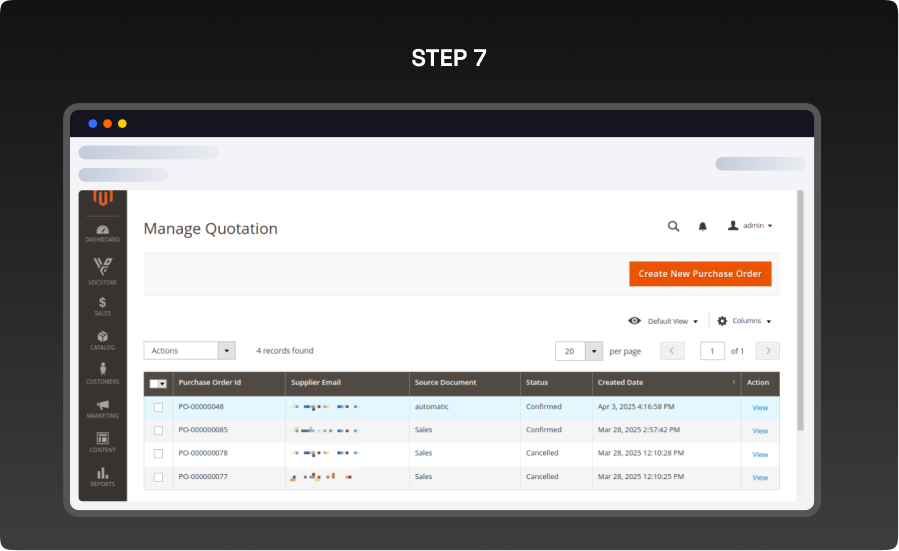
View Quotation:
- You can manage all the quotations from here. You can view and delete the quotations as shown in the screenshot.
STEP 8
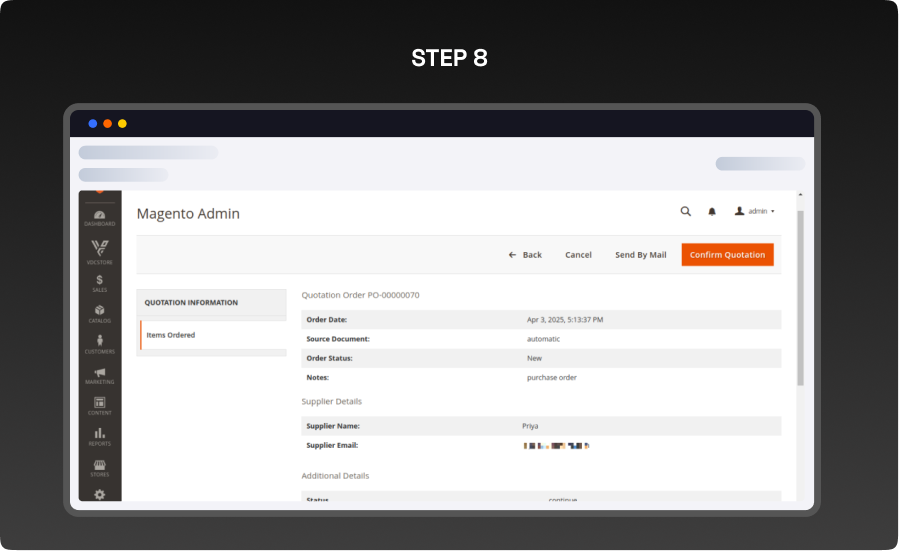
- You can view the details of the quotation as per the screenshot.
- After confirming the quotation, a success notification will appear here.
STEP 9
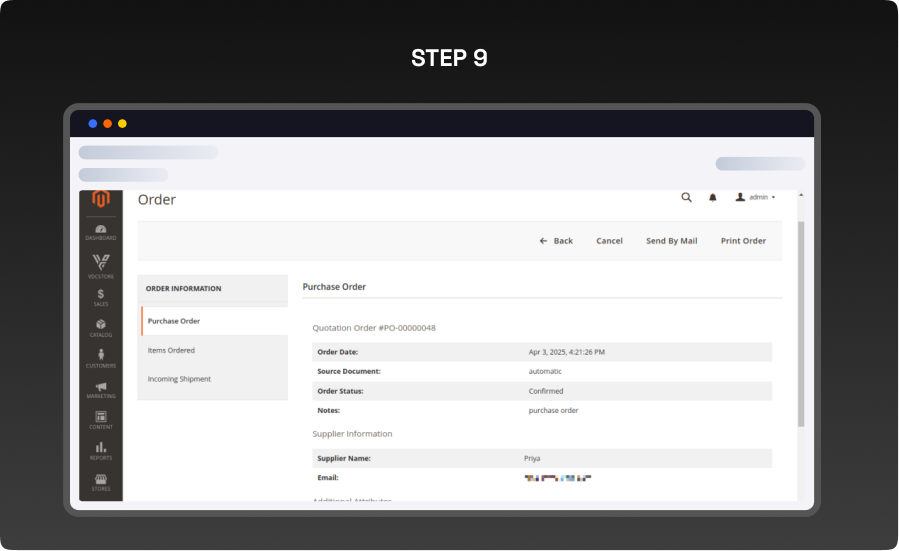
- You can view the details of the quotations after confirming the picture.
STEP 10
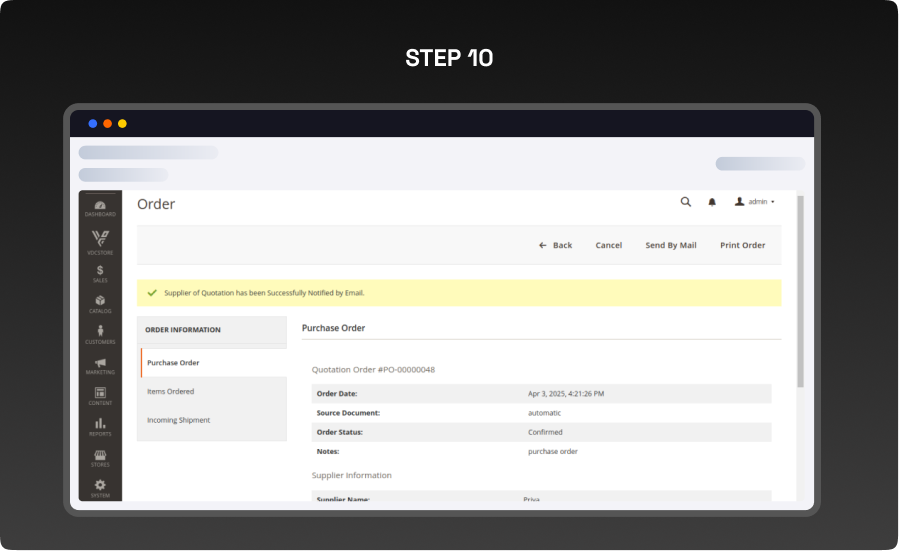
- Once you send the email using the Send By Mail button, the supplier will be notified.
STEP 11
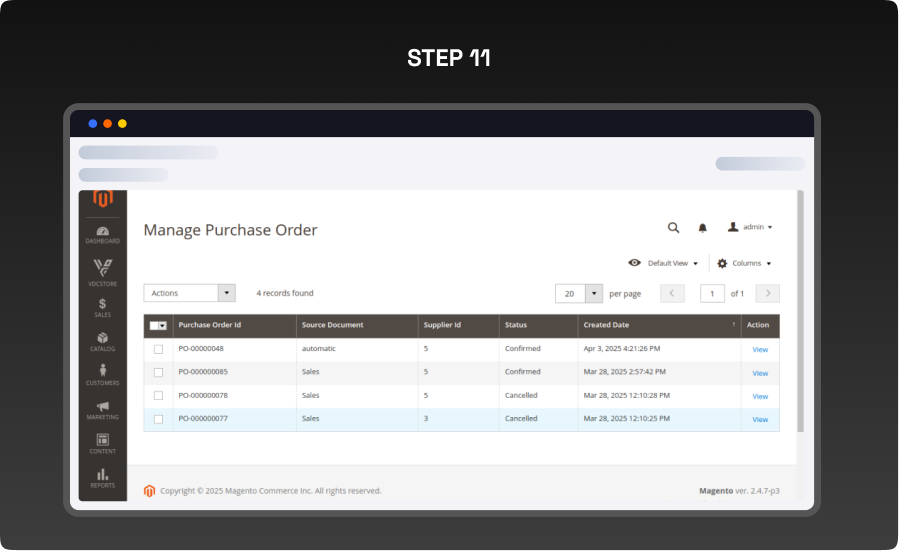
- You can manage all the purchase orders from this tab as shown in the screenshot.
STEP 12
View Purchase Order:
- After clicking the View link, the admin will see the following page. Here, the admin can view the complete Purchase Order Information.
- Send by Email After clicking this button, the purchase order will be sent to the supplier’s email address.
- Print Order To print the Purchase Order information, click Print Order.
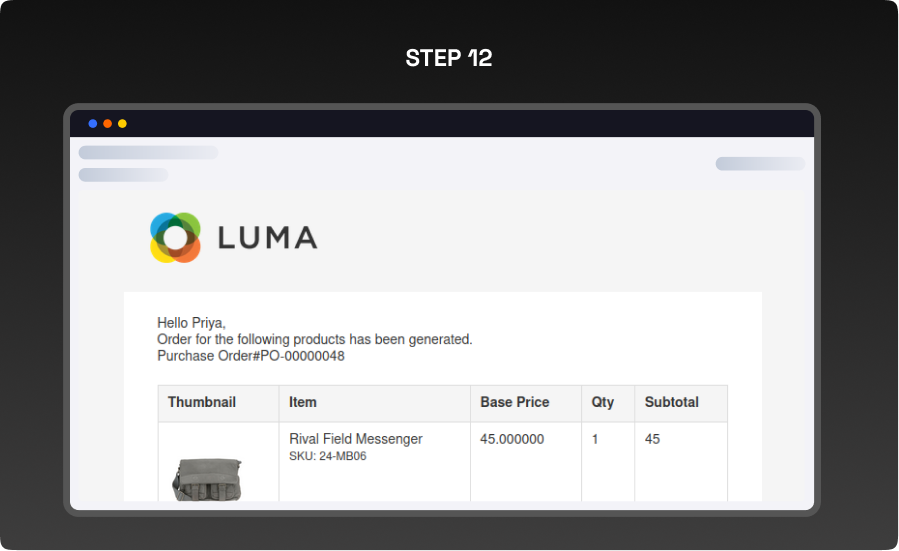
Purchase Order Email:
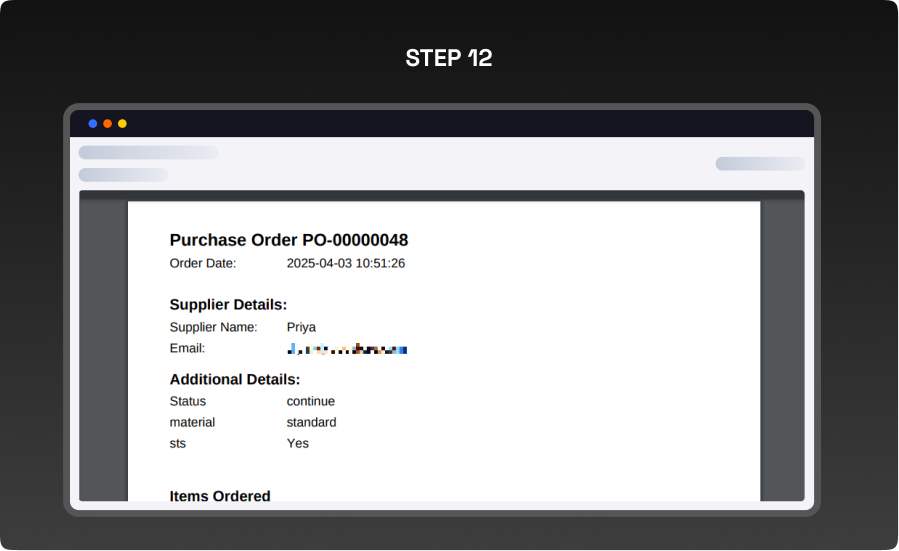
Purchase Order Email:
STEP 13
Purchase Order Download (Print):
- To view and manage Incoming Shipments navigate to Vdcstore Purchase Order
- Incoming Shipments.
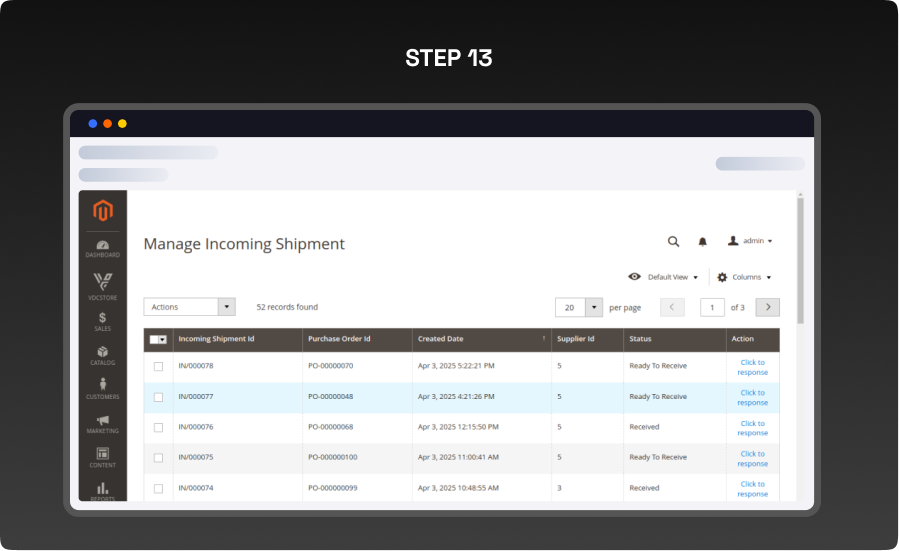
- Actions : Use this option to Receive incoming shipments.
- Click to Response : To Update an incoming shipment, click this option.
STEP 14
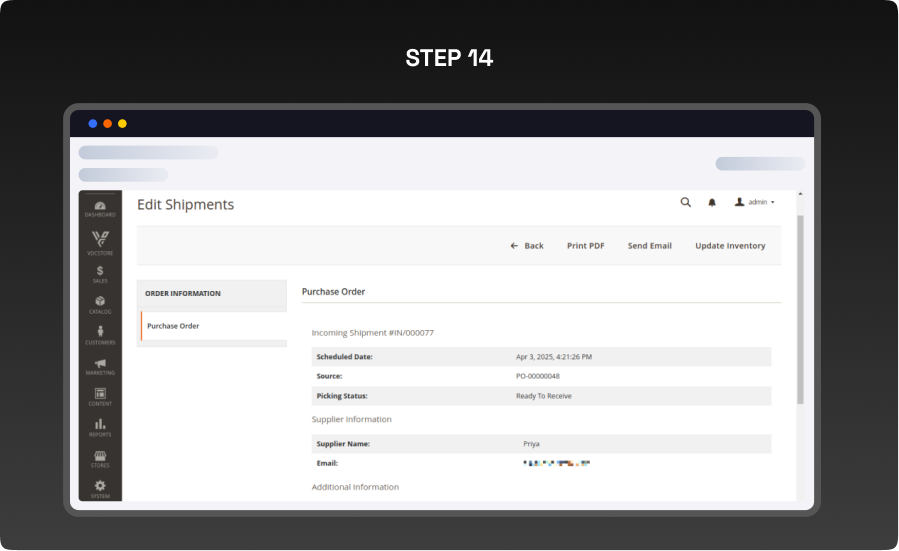
- The Update Inventory button in the Edit Shipments page likely updates the stock levels based on the incoming shipment. When clicked, it may:
- Add received stock to inventory.
- Change stock Status from “Ready to Receive” to “Received”.
STEP 15
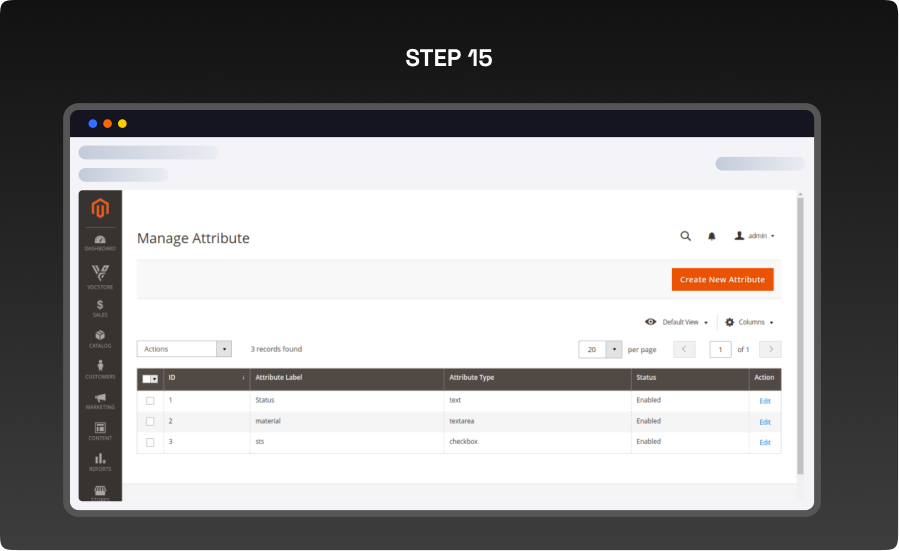
Manage Attribute:
- Admin can manage the attributes from Manage Attributes navigate through Vdcstore Purchase Order >Manage Attributes.
STEP 16
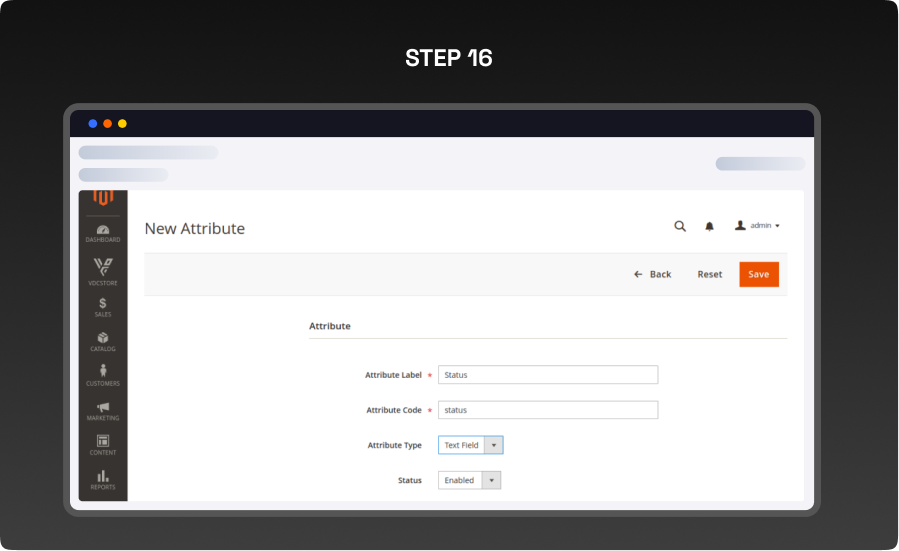
- You can add new attributes like text area, check box, options, text field.
STEP 17
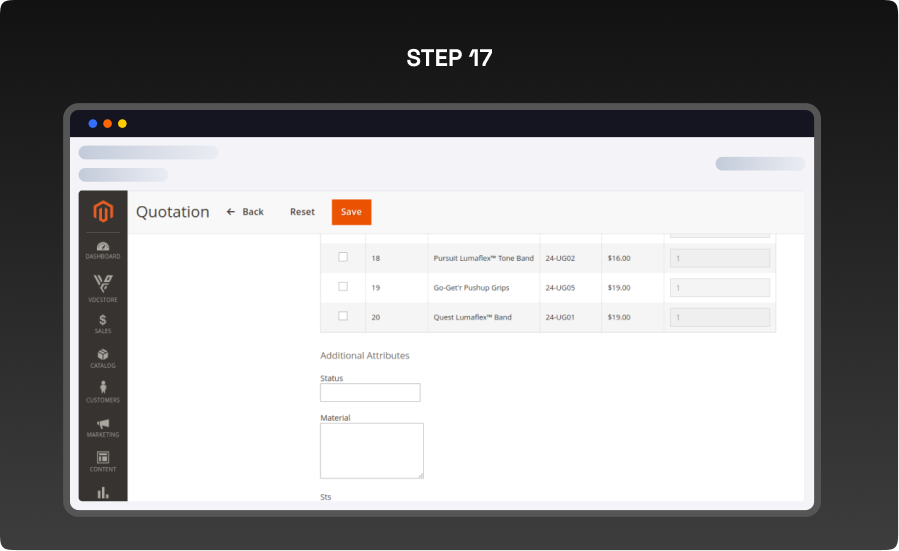
- You will be able to see the enabled custom attributes in the new quotation as shown in the screenshot.
What you'll obtain with our Magento Technical Audit
With VDC Store's Magento eCommerce technical audit you'll gain expert separate in-depth analysis with an exhaustive summary of the state of your store's code grade and overall usability.

-

An organizational summary of discoveries with preferences and a brief overview
-
3rd party extensions initial review
-
An exact description of results and suggested solutions
-
Database innocence review (to secure that data is recorded precisely as planned)
-
Top preferences for your architects
-
Code quality examination (periodic reflection of your store source code)
-
Examination of possible Magento core design changes
-
Speed and execution analysis (HTTP requests, optimizations, exhale headers…)
By a technical appraisal, the client not only obtains information about the issues the store is facing but also this examination by VDC Store allows them to acquire beneficial information and concepts for setting up programs to enhance sales and conversion drivers.
Our analysis appreciates the essence of your business. We are not utilizing an automatic procedure that is used in every case. We want to make sure you end up with suggestions based on the exact condition of your store. Start the discussion about the Magento technical audit you're curious in by filling out the Contact Us form.
Why Choose the VDCStore Magento 2 Purchase Order Extension
For B2B merchants, wholesale buyers, or organizations that require invoicing flexibility, traditional checkout processes aren’t always suitable. The VDCStore Magento 2 Purchase Order Extension streamlines purchasing workflows by enabling your store to support purchase order (PO) payments — allowing approved customers to place orders without paying upfront and settle invoices later via official PO numbers. This extension enhances business credibility, simplifies account-based transactions, and aligns with enterprise procurement processes. With role-based access, PO validation rules, admin controls, and seamless integration into Magento 2 checkout, you can offer a flexible payment experience that caters to business buyers, government entities, or corporate accounts — all without custom code or complex configuration.
Live Demo


Explore Our Customer Reviews
Dr Zahid
 Verified
Very happy with the website service!
Very happy with the website service. Great communication, high-quality design, and timely delivery. Everything was handled professionally, and the end result exceeded our expectations. Would definitely recommend.
Ravinder Gupta
VerifiedGreat experience
Great experience working with this software company. The team is professional, responsive, and delivered exactly what was promised.
Erel Support
VerifiedExtremely satisfied
I am extremely satisfied with the website they built for us. They listened carefully to our ideas, suggested improvements, and delivered a site that perfectly represents our brand.The process was smooth,strees-free,well organized.Great attention to detail and excellent support even after launch
Anurag Kumar
VerifiedGreat experience working with this team
We had a great experience working with this team for our website. They were Professional, responsive, and clearly understood our requirements from the start. The final website looks clean and modern and works perfectly across all devices. Communication was smooth throughout the project, and everything was delivered on time. Highly recommended for anyone looking for reliable website services and extensions.
Amol Bhoyate
VerifiedReliable, Professional, and High-Quality Web Development
We had a great experience working with VDC Store for our website development needs. From the very beginning, their team was professional, responsive, and attentive to our requirements. They clearly understood our vision and delivered a modern, user-friendly website that aligns perfectly with our business goals.
Comparison


Explore Our Hyvä Theme Demos
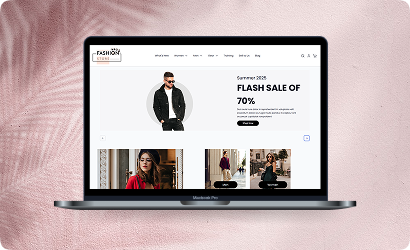
Fashion Store
Experience lightning-fast browsing and seamless product discovery in our Fashion demo, designed for smooth navigation and instant page loads.

Jewelry Store
Experience a sleek, lightning-fast browsing experience with our Jewelry demo — optimized for smooth navigation and instant product loading. Modern design meets high performance for flawless shopping.
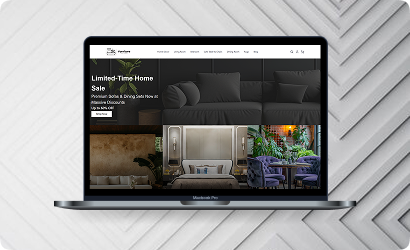
Furniture Store
Our Furniture demo delivers fast, responsive pages and seamless product filtering, letting users explore large collections without delay. Performance-driven design for ultimate online convenience.
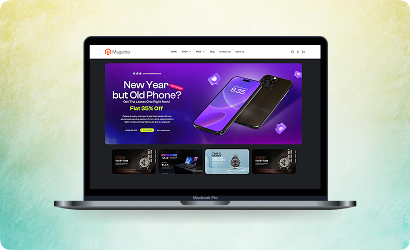
Electronics Store
Explore the Electronics demo with blazing-fast load times and smooth interactive features, ensuring a high-speed, immersive shopping experience. Optimised for tech-savvy customers.
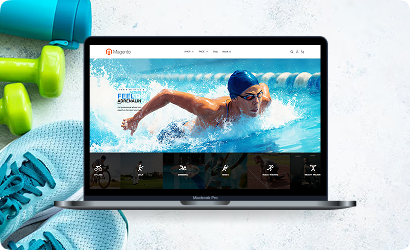
Fitness Store
The Fitness demo combines speed and responsiveness with effortless navigation, making it easy to browse workout gear and accessories quickly. Built for fast, engaging online fitness shopping.

Beauty Store
Enjoy instant load times and smooth interactions in our Beauty demo, designed for a seamless, high-performance shopping journey. Perfect for browsing beauty products without interruptions.
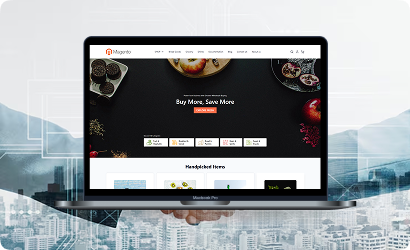
B2B Store
Our B2B demo emphasizes speed and efficiency, handling bulk catalogs and quick ordering without lag. Engineered for high-performance business-to-business operations.
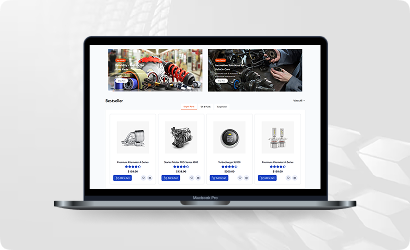
Auto Store
The Auto demo offers responsive navigation and rapid product searches, making car parts and accessories easy to find. Optimized for high-speed, performance-driven shopping.
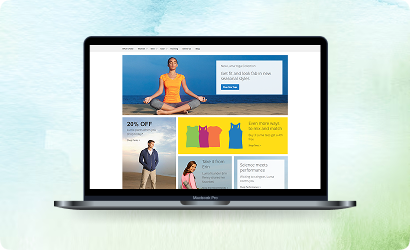
Hyvä Demo Store
Experience the Hyvä demo’s cutting-edge performance with near-instant page loads, smooth animations, and superior responsiveness. Designed for modern, lightning-fast eCommerce.
FANTASTIC AND PREMIUM CLIENTS
Trusted by







Need More Help?
Save time by starting your support request online and we'll connect you to an expert. Save time by starting your support request.