 Shopify Migration



Magento 2 MCP Connector






User Guide
The Vdcstore_Mcp module turns your Magento 2 store into a Model Context Protocol (MCP) server, so AI assistants such as Claude can securely connect to your store and use a defined set of tools to read and manage data — products, orders, customers, CMS, reports, and store configuration — directly from a chat conversation.
Extension Installation
- Download the zip file
- Extract it so the module files end up in app/code/Vdcstore/Mcp
- Open Cli in the Magento directory and follow the below commands:
- php bin/magento s:up
- php bin/magento s:d:c
- php bin/magento s:s:d -f
- php bin/magento i:rei
- php bin/magento c:f
- php bin/magento cron:install
- php bin/magento cron:run
-
Step 1 — Enable the Server & Configure General, Security, Authentication and Logging
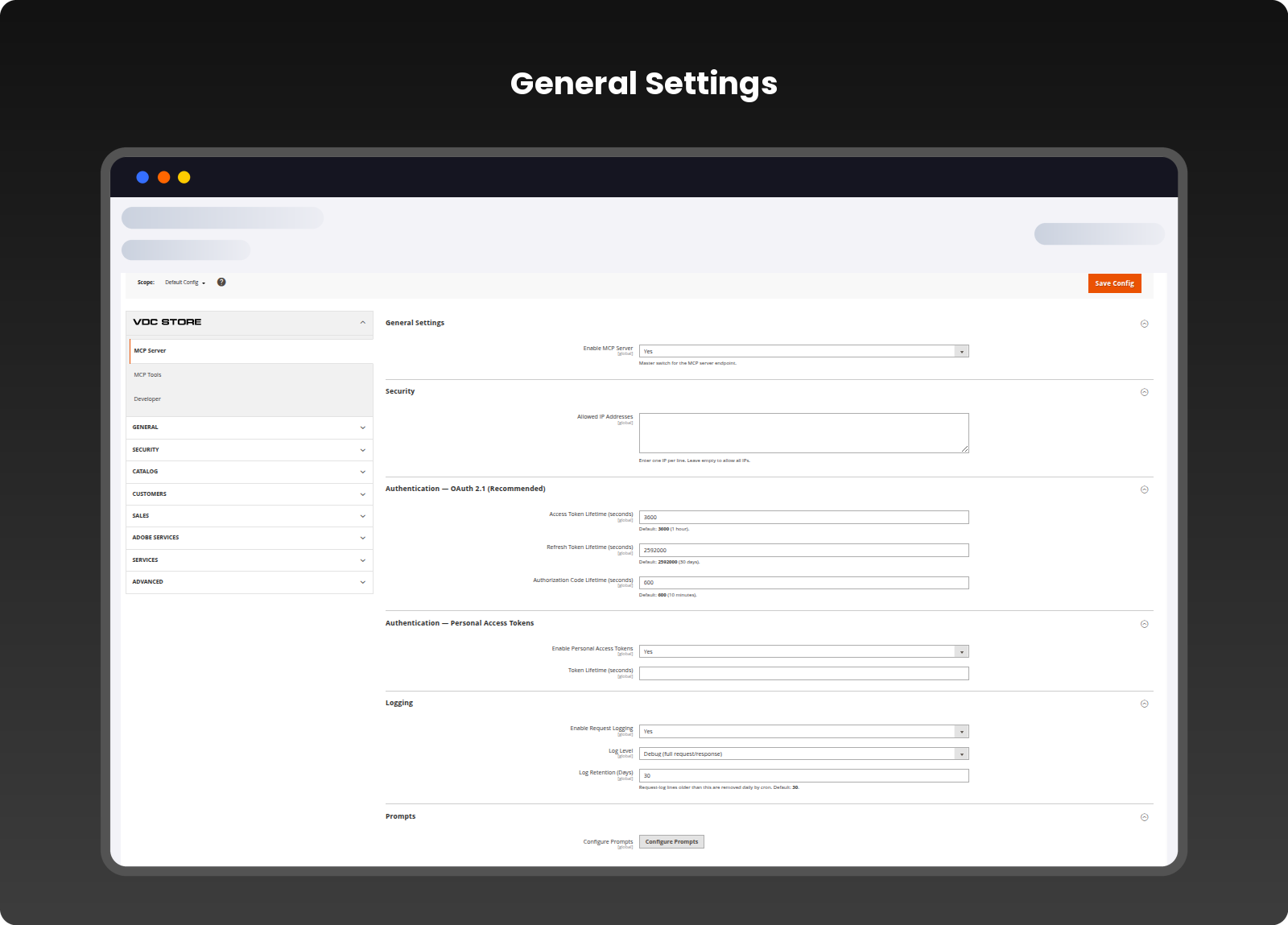
- This single configuration page is the control center for the entire module: it turns the server on, restricts it by IP, sets up OAuth 2.1 and Personal Access Token authentication, and controls request logging.
- Navigation: Stores → Configuration → VDC Store → MCP Server
-
General Settings
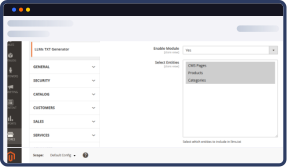
- Enable MCP Server : the master switch for the module. Set to Yes to turn on the MCP endpoint; set to No to disable it completely, including all tools, OAuth flows, and PAT tokens.
-
Security
- Allowed IP Addresses : an optional allow-list, one IP per line, restricting which networks may reach the MCP endpoint and the OAuth token and client-registration endpoints. Leave empty to allow all IPs (authentication is still required).
-
Authentication — OAuth 2.1 (Recommended)
- Access Token Lifetime (seconds): how long an issued access token stays valid. Default 3600 (1 hour).
- Refresh Token Lifetime (seconds): how long the refresh token stays valid before the client must sign in again. Default 2592000 (30 days).
- Authorization Code Lifetime (seconds): how long the temporary code from the sign-in/consent step is valid before it must be exchanged for tokens. Default 600 (10 minutes).
-
Authentication — Personal Access Tokens
- Enable Personal Access Tokens : an alternative to OAuth for scripts and tools that cannot use the browser sign-in flow (scripts, CLIs, server-to-server integrations). Default: No. While this is set to No, every Personal Access Token is rejected.
- Token Lifetime (seconds): how long a token stays valid, counted from the moment it is created. 0 (the default) means the token never expires, which is not recommended. Example: 2592000 = 30 days.
- Create a token: run
php bin/magento vdcstore:mcp:token create "Label" ADMIN_USER_ID. The token is shown once and cannot be recovered. It has the permissions of that admin user and works only while that user's MCP Access Status is Enabled. Manage tokens withtoken listandtoken revoke TOKEN_ID. Send it asAuthorization: Bearer <token>. -
Logging
- Enable Request Logging : records every request an AI client makes to the MCP server, for auditing and troubleshooting.
- Log Level: Basic (method and status), Detailed (also includes request parameters) or Debug (also records the raw request). Detailed and Debug can contain customer or order data, so use them only temporarily. Logs are written to var/log/vdcstore-mcp.log.
- Log Retention (Days): log lines older than this are removed once a day by Magento cron, which also clears expired OAuth codes and tokens. Magento cron must be running. Default 30.
- Recommendation: keep OAuth 2.1 as your primary authentication method (it always asks an admin to approve a new connection), and only enable Personal Access Tokens if you have a script-based integration that needs one — then set a finite Token Lifetime.
-
Step 2 — Lock Down the Database Reader Tool
- The Database Reader tool lets a connected AI client run direct, read-only SQL queries against your Magento database. Because this is the most powerful tool the server exposes, it has its own dedicated section with table-level restrictions.
- Navigation: Stores → Configuration → VDC Store → MCP Tools → Database Reader
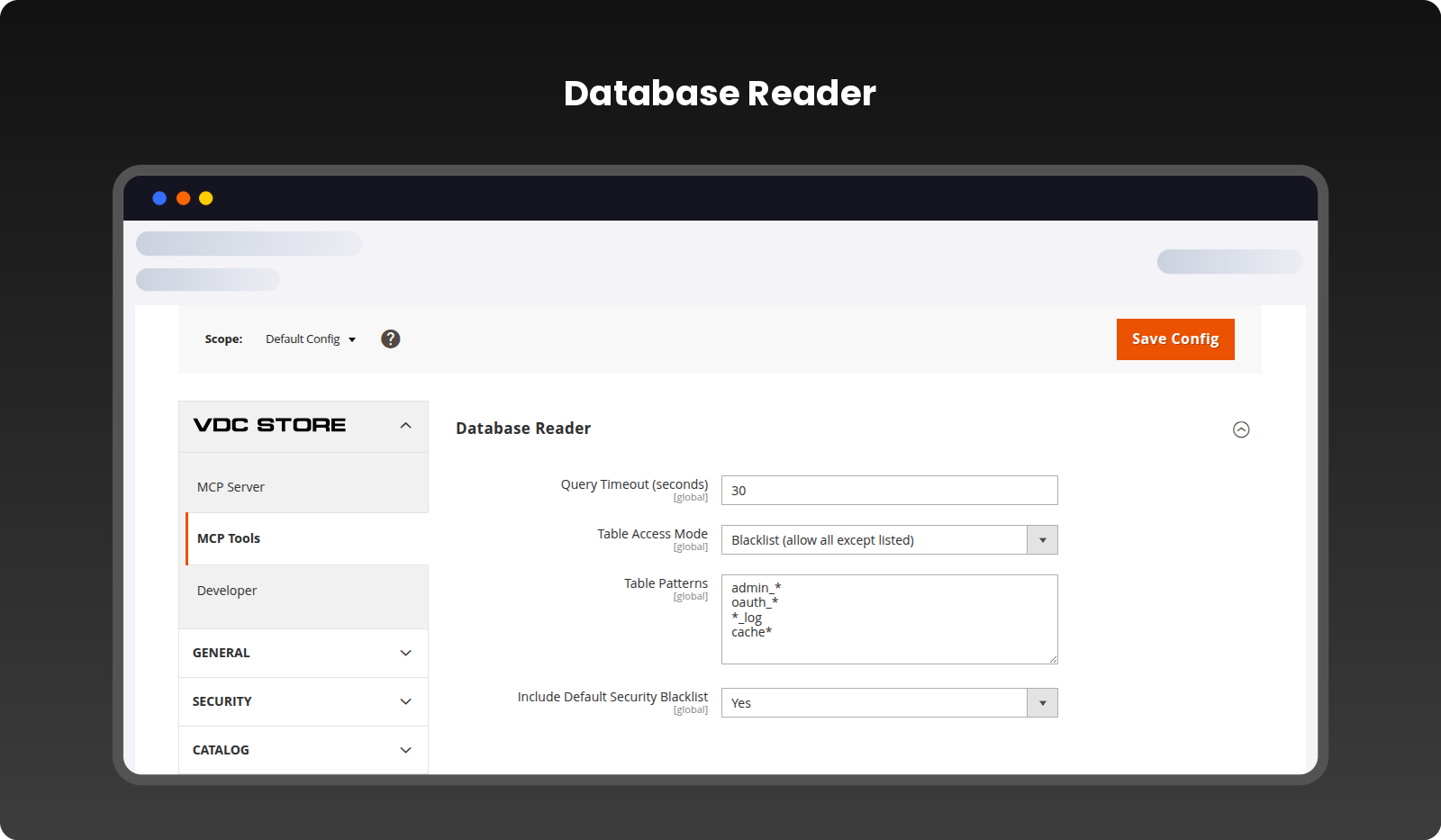
- Query Timeout (seconds) : the maximum time a single query may run before it is automatically cancelled.
- Table Access Mode : sets whether the Table Patterns list below is a Blacklist (allow all tables except the ones listed) or a Whitelist (allow only the tables listed).
- Table Patterns : one table name or wildcard pattern per line (for example admin_*, oauth_*, *_log, cache*) applied according to Table Access Mode. Write names without the database table prefix.
- Include Default Security Blacklist: when Yes, a built-in list of sensitive tables is always blocked, on top of your own patterns: admin users and sessions, OAuth and module token tables, store configuration (core_config_data), and customer, address, quote and payment tables.
- Allowed queries : one read-only statement per call (SELECT including WITH, EXPLAIN, DESCRIBE, and SHOW TABLES/COLUMNS/INDEX). Comments, semicolons, INTO, locking reads and system schemas are rejected. Queries run in a read-only transaction and return at most 1000 rows.
- Recommendation : keep Table Access Mode on Blacklist (or Whitelist for maximum control), leave the default security blacklist enabled, and only widen access if a specific AI workflow genuinely needs it.
-
Step 3 — Developer Settings (Optional)
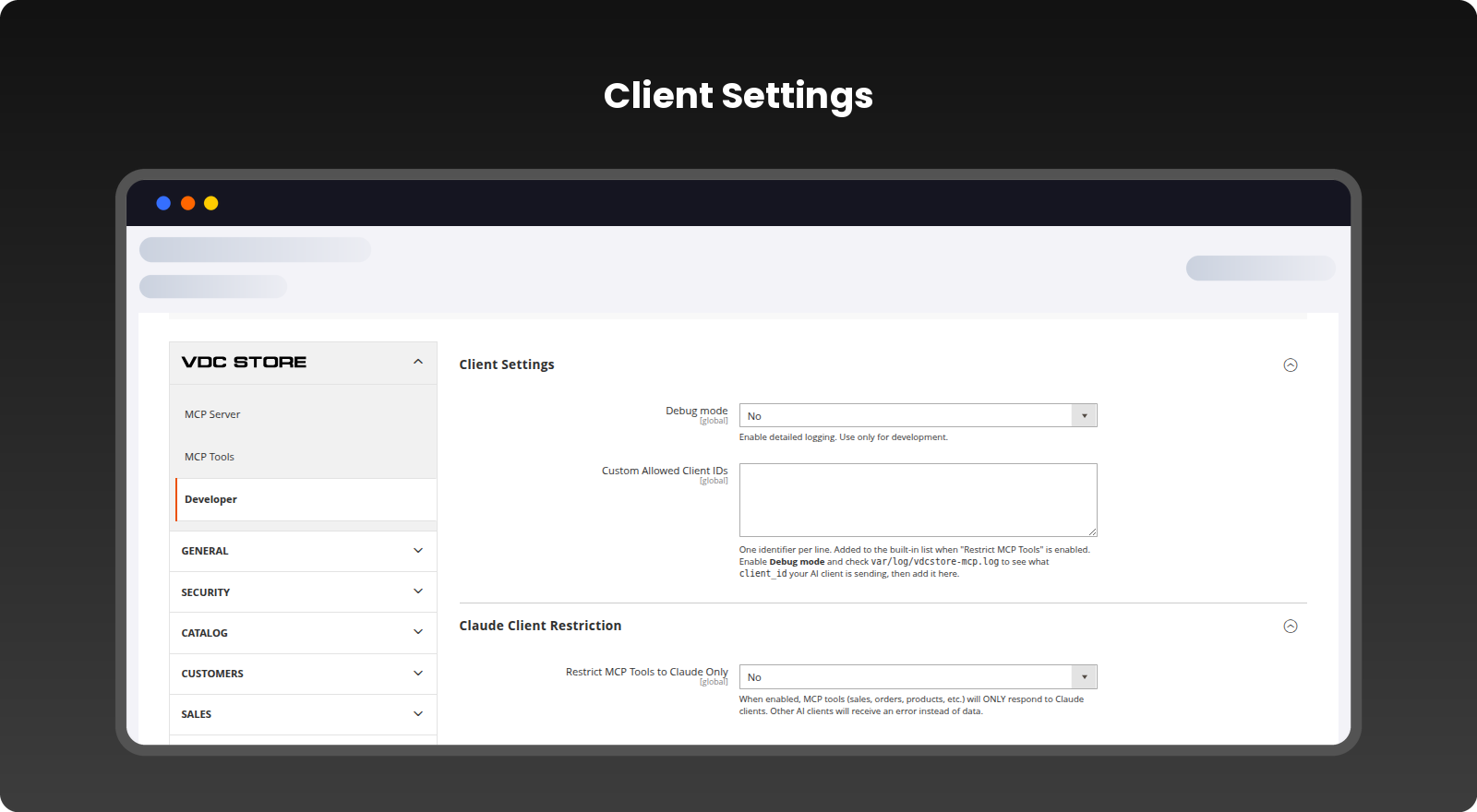
- Optional settings for troubleshooting and for limiting which AI clients can use the tools.
- Navigation: Stores → Configuration → VDC Store → Developer
-
Client Settings
- Debug mode : records extra detail in var/log/vdcstore-mcp.log, such as the client_id each AI client sends. Use only for development.
- Custom Allowed Client IDs : one identifier per line, added to the built-in list when "Restrict MCP Tools to Claude Only" is enabled. To find the right value, turn on Debug mode, check var/log/vdcstore-mcp.log to see the client_id your AI client sends, then add it here.
-
Claude Client Restriction
- Restrict MCP Tools to Claude Only : when Yes, the MCP tools (sales, orders, products, etc.) only respond to clients identified as Claude; other AI clients receive an error instead of data. Default: No.
- Recommendation : this setting relies on the client name and User-Agent that the client reports, so it limits accidental use but is not a security control. Rely on authentication, role permissions and the Allowed IP Addresses list (Step 1) for security.
-
Step 4 — Review Connected Admin Users
- The MCP Users grid gives you a single view of every Magento admin user and their current MCP access, at a glance.
- Navigation: System → AI Agent Connector → MCP Users
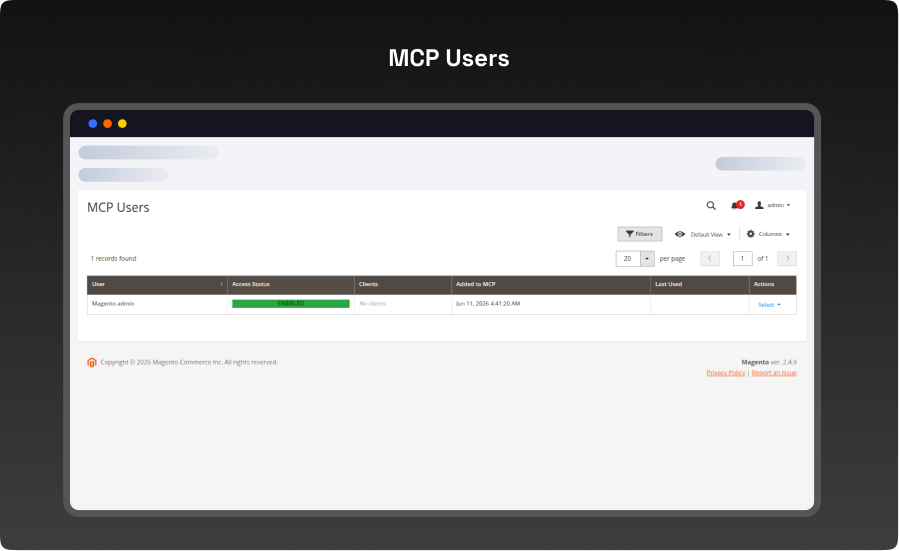
- User: the Magento admin account the row refers to.
- Access Status: whether that user's MCP access is currently Enabled or Disabled.
- Clients:the AI client application(s) this user has authorized via OAuth (or "No clients" if none yet).
- Added to MCP: the date this user first gained MCP access.
- Actions:
- use the Select dropdown to view details, enable, disable, or revoke access for that user.
- Note: Disable also revokes all of that user's OAuth tokens and Personal Access Tokens permanently. Enabling the user again does not restore them: the user must connect again, and a new Personal Access Token must be created.
-
Step 5 — Manage a Single User's MCP Access
- Navigation : System → Permissions → All Users → [User] → MCP Info
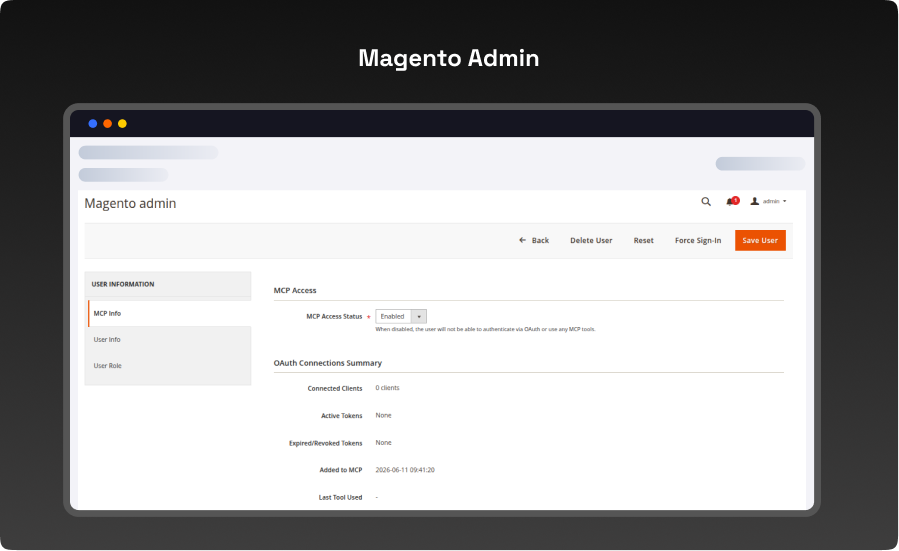
- MCP Access Status : Enabled or Disabled for this specific user. When disabled, the user can't authenticate via OAuth or a Personal Access Token, or use any MCP tools, even if the module is enabled globally. Setting it to Disabled and saving takes effect immediately and keeps the user's tokens; setting it back to Enabled restores access.
- Connected Clients : how many AI client applications this user has authorized.
- Active Tokens / Expired-Revoked Tokens : a live count of this user's current and past OAuth tokens.
- Added to MCP: when this user's MCP access record was created.
- Show Details: opens a detailed list of every client, token creation/expiry date, and status, with the option to revoke individual tokens.
-
Step 6 — Restrict Tool & Table Access by Admin Role
- For stores with multiple admin roles, MCP access can be fine-tuned per role, on top of the global settings from Step 1 and Step 2.
- Navigation : System → Permissions → User Roles → [Role] → MCP Info
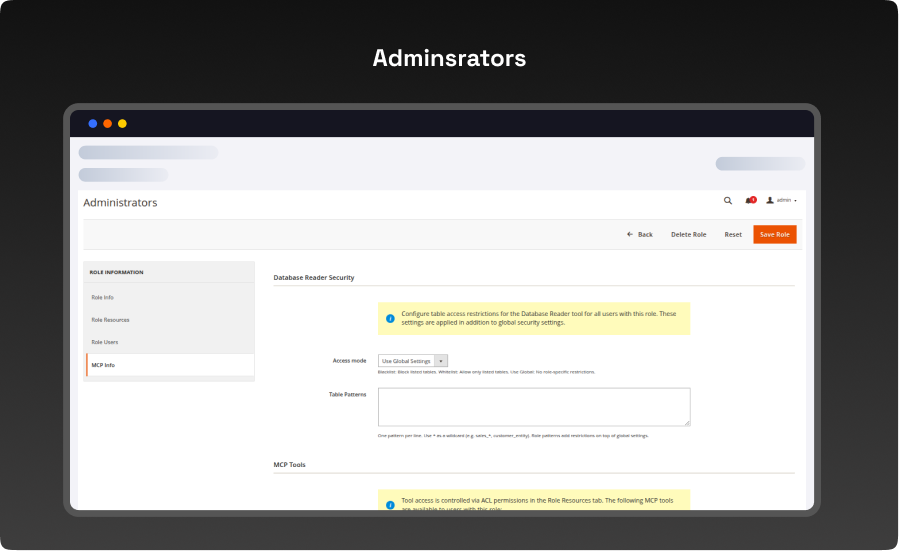
- Access Mode : Use Global Settings, Blacklist, or Whitelist. Role-level patterns add restrictions on top of (not instead of) the global Database Reader settings from Step 2.
- Table Patterns : role-specific table patterns, one per line, using * as a wildcard (for example sales_*, customer_entity).
- MCP Tools : a read-only reference list of which MCP tools this role can use, controlled by the normal ACL permissions on the Role Resources tab (Store Info, Database Reader, GraphQL Query, Products, Orders, Customers, Inventory, CMS, Reports).
- Allow Changes (create and update) : a separate permission on the Role Resources tab. Without it the role is read-only: creating or changing data, including GraphQL mutations, is refused.
- Use this when different teams should see different data through the AI assistant — for example, giving a marketing role access to Products and Reports but not Database Reader.
-
Step 7 — Manage MCP Prompts
- Prompts are pre-written, reusable instructions that an AI client can pull from your store and run directly, instead of the user typing the same request every time. The module ships with several ready-made prompts covering common store-management tasks.
- Navigation: System → AI Agent Connector → MCP Prompts
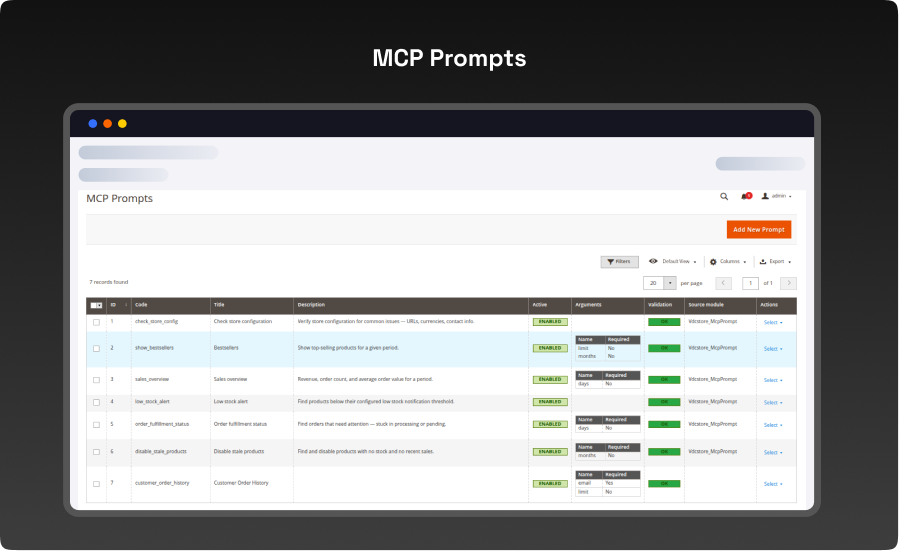
- Code : the unique machine-readable identifier the AI client uses to call the prompt (for example show_bestsellers, low_stock_alert).
- Title / Description : the human-readable name and explanation shown to the AI client so it knows what the prompt is for and when to use it.
- Arguments: the input variables the prompt accepts, such as months or days, shown with whether each is required.
-
Step 8 — Create or Edit a Prompt
- The prompt editor is where a prompt's wording, arguments, and tool dependencies are defined.
- Navigation : System → AI Agent Connector → MCP Prompts → [Add New Prompt / row]
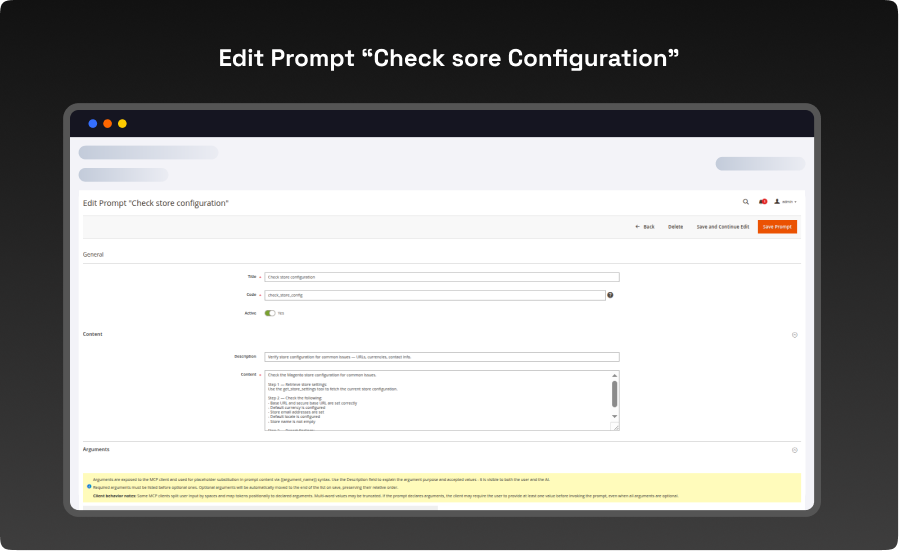
- Title / Code / Active:the prompt's display name, its unique code, and whether it's currently enabled.
- Description:a short summary shown to the AI client so it can decide when to use this prompt.
- Content : the actual step-by-step instructions the AI follows when the prompt is invoked, written in plain language and referencing specific MCP tools (for example "Use the get_store_settings tool to fetch the current store configuration").
- Arguments : any variables the prompt accepts, inserted into the Content using {argument_name} placeholders. Required arguments are listed before optional ones.
- Dependencies — Required tools : the specific MCP tool(s) this prompt relies on, so it only runs where the necessary tool access exists.
- Source module : the module that provides this prompt, used to hide it automatically if that module is later disabled.
-
Step 9 — Get Your Personal Connection Details
- Every admin user can find their own MCP server URL and client setup instructions on their My Account page, without needing developer help.
- Navigation : Admin Panel → Account Name (top right) → My Account → AI Client Configuration
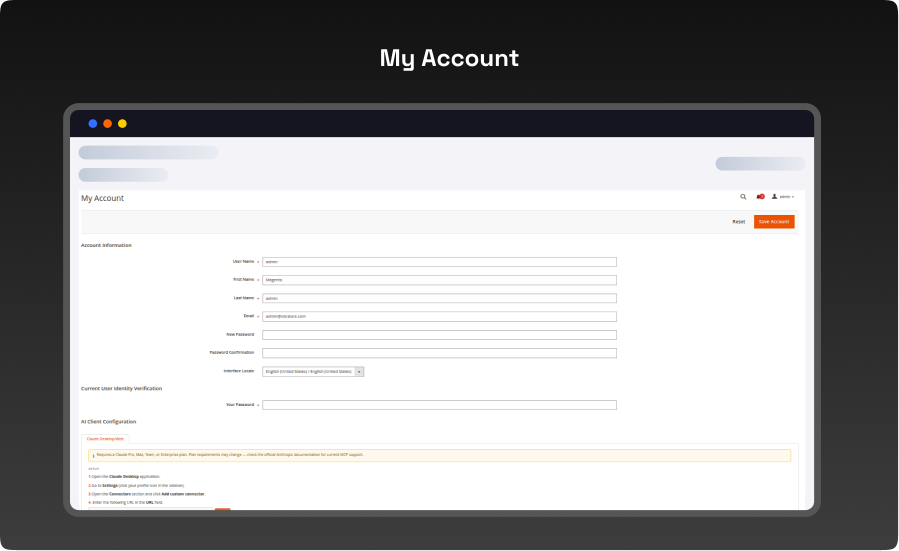
- This panel lists the exact steps to connect Claude Desktop or Claude on the web: open Settings → Connectors → Add custom connector, then paste in the MCP server URL shown here (using the Copy button), give it a name, and click Add.
- The Authentication & Usage steps below that explain how to complete sign-in and start using the connector in a chat.
-
Step 10 — Add the Connector in Claude
- This is what the admin user sees on the Claude side when following the steps from Step 9.
- Navigation : Claude Desktop/Web → Settings → Connectors → Add custom connector
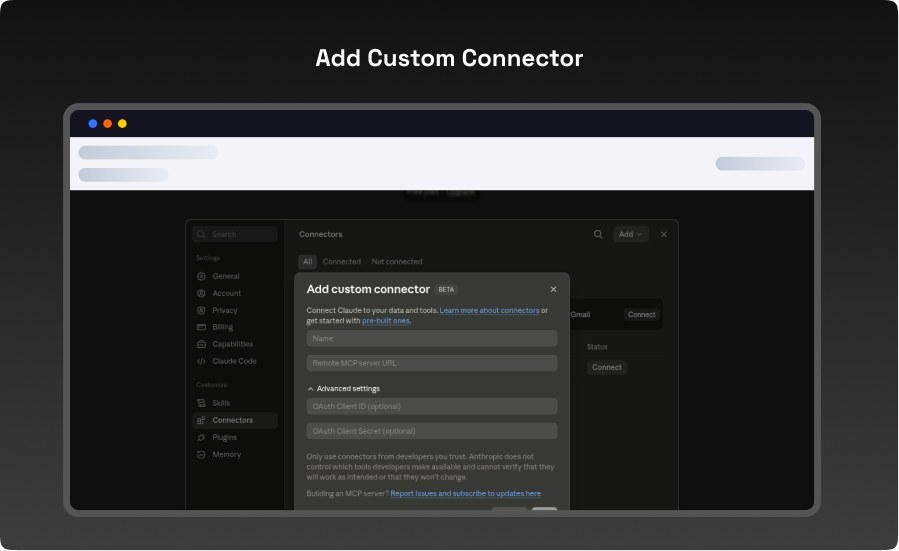
- Name : any label you'll recognize, such as your store name.
- Remote MCP server URL : paste the URL copied from the My Account page in Step 9.
-
Step 11 — Authorize the Connection
- After adding the connector, a browser window opens showing Magento's OAuth 2.1 consent screen. This screen is always shown; there is no setting to skip it.
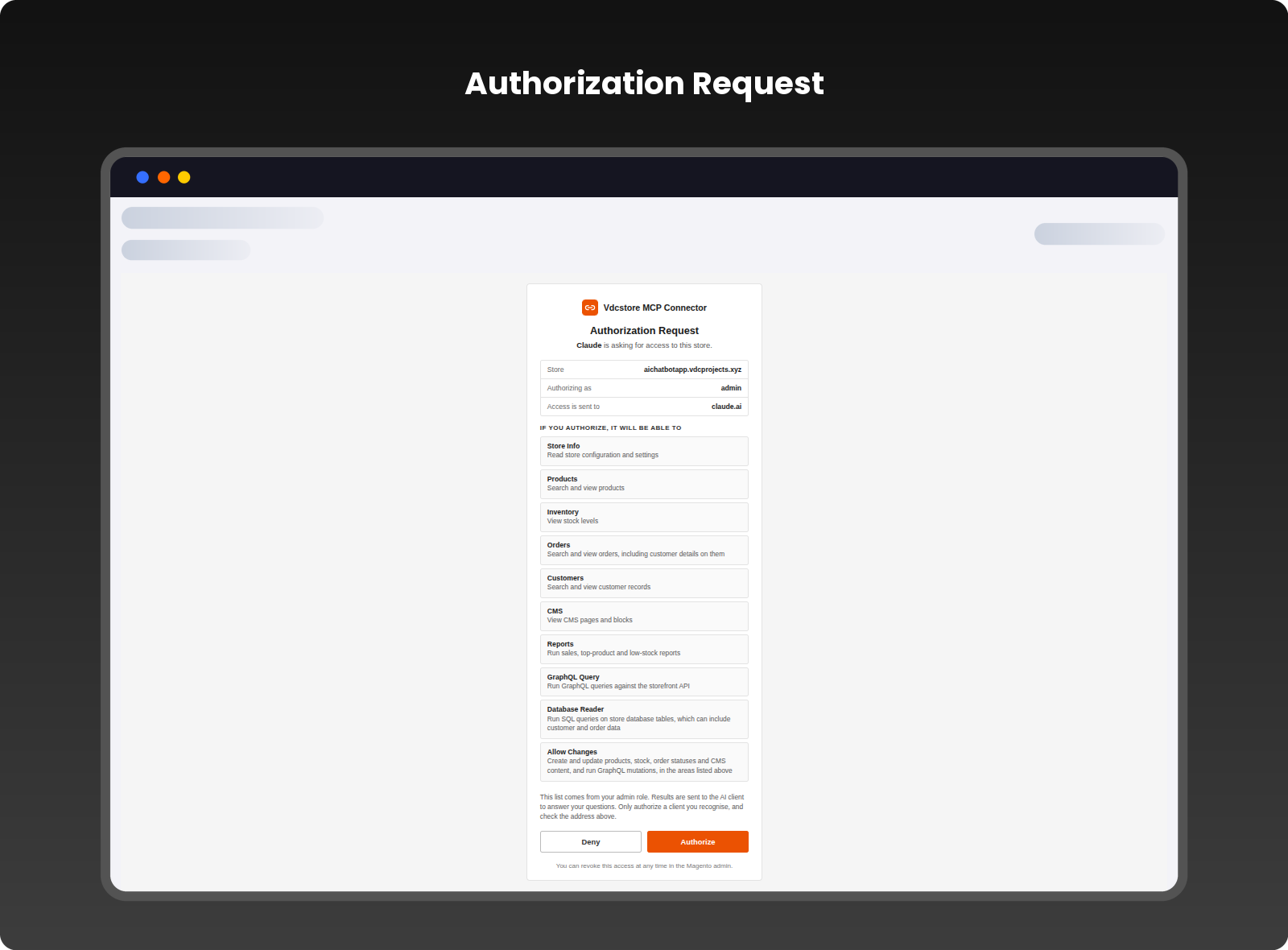
- The screen names the requesting application (Claude) and lists exactly which permission groups it is asking for — for example Store Manager, Store Info, GraphQL Query, and Database Reader — each with a plain-language description of what that permission allows.
- Click Authorize to grant access and complete the connection, or Deny to reject it.
- The permissions shown here are driven by the ACL/role restrictions from Step 6, so a user only ever sees (and can only grant) the tool access their role actually has.
- Once authorized, the connector is ready to use — click the "+" button in the lower-left of the Claude chat box and select it to start using your store's MCP tools.
Live Demo


Explore Our Customer Reviews
Dr Zahid
 Verified
Very happy with the website service!
Very happy with the website service. Great communication, high-quality design, and timely delivery. Everything was handled professionally, and the end result exceeded our expectations. Would definitely recommend.
Ravinder Gupta
VerifiedGreat experience
Great experience working with this software company. The team is professional, responsive, and delivered exactly what was promised.
Erel Support
VerifiedExtremely satisfied
I am extremely satisfied with the website they built for us. They listened carefully to our ideas, suggested improvements, and delivered a site that perfectly represents our brand.The process was smooth,strees-free,well organized.Great attention to detail and excellent support even after launch
Anurag Kumar
VerifiedGreat experience working with this team
We had a great experience working with this team for our website. They were Professional, responsive, and clearly understood our requirements from the start. The final website looks clean and modern and works perfectly across all devices. Communication was smooth throughout the project, and everything was delivered on time. Highly recommended for anyone looking for reliable website services and extensions.
Amol Bhoyate
VerifiedReliable, Professional, and High-Quality Web Development
We had a great experience working with VDC Store for our website development needs. From the very beginning, their team was professional, responsive, and attentive to our requirements. They clearly understood our vision and delivered a modern, user-friendly website that aligns perfectly with our business goals.
Explore Our Hyvä Theme Demos
Fashion Store
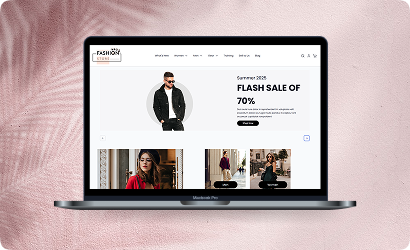
Experience lightning-fast browsing and seamless product discovery in our Fashion demo, designed for smooth navigation and instant page loads.

Jewelry Store
Experience a sleek, lightning-fast browsing experience with our Jewelry demo — optimized for smooth navigation and instant product loading. Modern design meets high performance for flawless shopping.

Furniture Store
Our Furniture demo delivers fast, responsive pages and seamless product filtering, letting users explore large collections without delay. Performance-driven design for ultimate online convenience.
Electronics Store
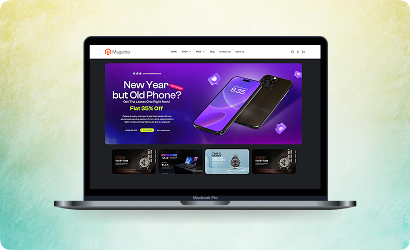
Explore the Electronics demo with blazing-fast load times and smooth interactive features, ensuring a high-speed, immersive shopping experience. Optimised for tech-savvy customers.
Fitness Store
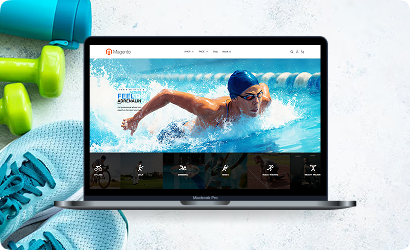
The Fitness demo combines speed and responsiveness with effortless navigation, making it easy to browse workout gear and accessories quickly. Built for fast, engaging online fitness shopping.

Beauty Store
Enjoy instant load times and smooth interactions in our Beauty demo, designed for a seamless, high-performance shopping journey. Perfect for browsing beauty products without interruptions.
B2B Store
Our B2B demo emphasizes speed and efficiency, handling bulk catalogs and quick ordering without lag. Engineered for high-performance business-to-business operations.

Auto Store
The Auto demo offers responsive navigation and rapid product searches, making car parts and accessories easy to find. Optimized for high-speed, performance-driven shopping.

Hyvä Demo Store
Experience the Hyvä demo’s cutting-edge performance with near-instant page loads, smooth animations, and superior responsiveness. Designed for modern, lightning-fast eCommerce.
FANTASTIC AND PREMIUM CLIENTS
Trusted by







Need More Help?
Save time by starting your support request online and we'll connect you to an expert. Save time by starting your support request.