 Shopify Migration



Magento 2 Whatsapp Notification





User Guide
The VDCStore WhatsApp Order Notification Module integrates your Magento 2 store with WhatsApp messaging, using either Twilio's WhatsApp API or Meta's official WhatsApp Cloud API. It automatically sends order-related notifications — order placement, shipment, invoice generation, and credit memo (refund) — to both customers and store admins, along with a welcome message on customer signup. This guide walks through every configuration step, from creating provider accounts to setting up message templates, so you can set up, manage, and verify your WhatsApp notification integration confidently.
Extension Installation
- Download the zip file
- Extract and put it into /app/code/
- Open Cli in the Magento directory and follow the below commands:
- php bin/magento s:up
- php bin/magento s:d:c
- php bin/magento s:s:d -f
- php bin/magento i:rei
- php bin/magento c:f
- php bin/magento cron:install
- php bin/magento cron:run
-
Step 1 – General Settings - Twilio WhatsApp API
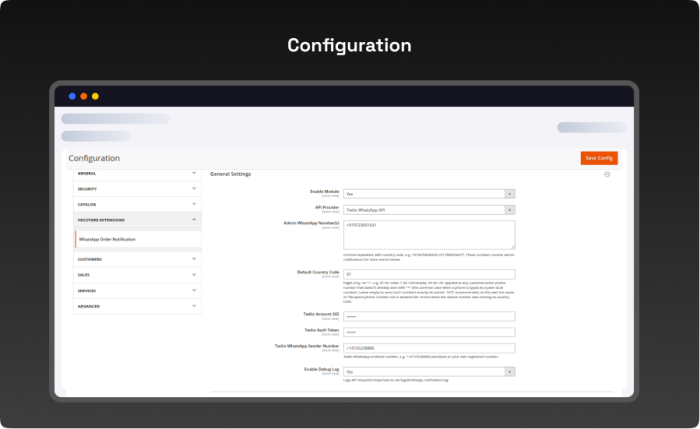
- Navigation: Admin > Stores > Configuration > Vdcstore Extensions > WhatsApp Order Notification > General Settings
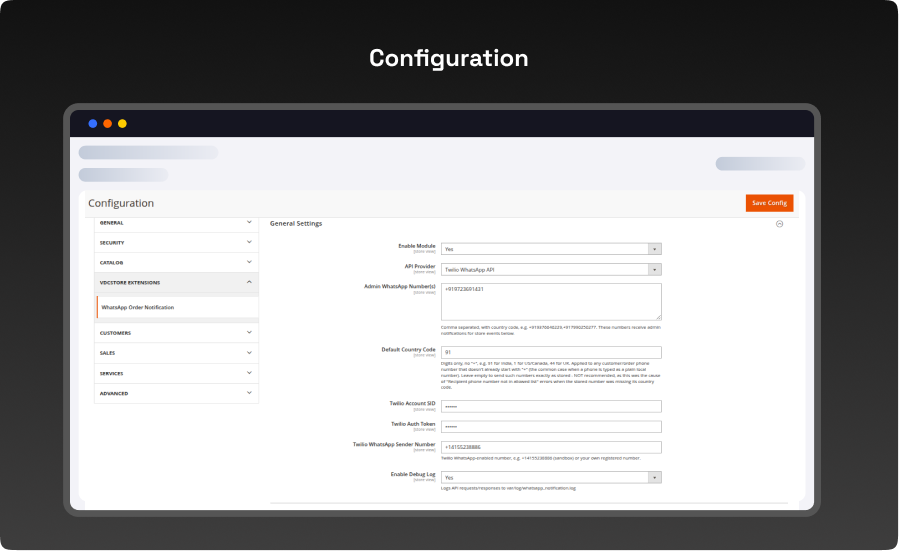
- Enable Module: Master switch for the whole module. Must be Yes for any notification to send.
- API Provider: Choose Twilio WhatsApp API or Meta Cloud API. The fields below change depending on this choice.
- Admin WhatsApp Number: Comma-separated numbers, with country code (e.g. +919376646229,+917990250277), that receive admin-side copies of the notifications configured below.
- Default Country Code: Digits only, no "+" (e.g. 91 for India, 1 for US/Canada). Applied automatically to any stored customer phone number that doesn't already start with "+".
- Twilio Account SID / Auth Token: Credentials copied from the Twilio Console (shown later in this guide).
- Twilio WhatsApp Sender Number: The Sandbox number while testing, or an approved production sender number once live.
- Enable Debug Log: When Yes, every API request/response is written to var/log/whatsapp_notification.log.
-
Step 2 – Order Placed Notification Settings
- Navigation: Admin > Stores > Configuration > Vdcstore Extensions > WhatsApp Order Notification > Order Placed Notification
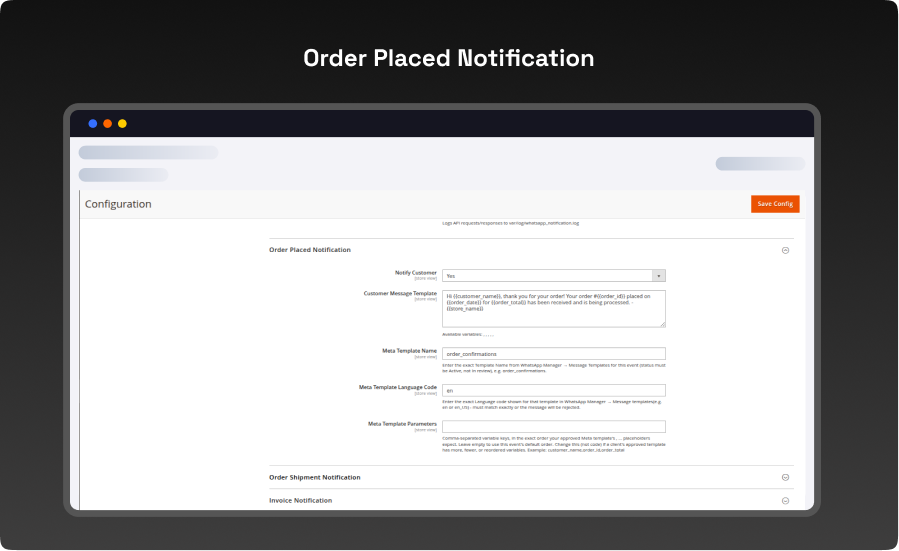
- Notify Customer: Turns this event's customer-facing message on or off.
- Customer Message Template: The free-text message sent when using Twilio. Supports placeholders such as {{customer_name}}, {{order_id}}, {{order_date}}, {{order_total}}, {{store_name}}.
- Meta Template Name:
- Used only when the provider is Meta. Must exactly match an Active template name in WhatsApp Manager, e.g. order_confirmations.
- Meta Template Language Code: Must exactly match the template's language shown in WhatsApp Manager, e.g. en_US.
- Meta Template Parameters: Comma-separated variable keys, in the same order as the template's {{1}}, {{2}}... placeholders. Leave empty to use the event's default order.
-
Step 3 – Twilio Console - Account SID and Auth Token
- Navigation: Twilio Console (console.twilio.com) > Account Dashboard
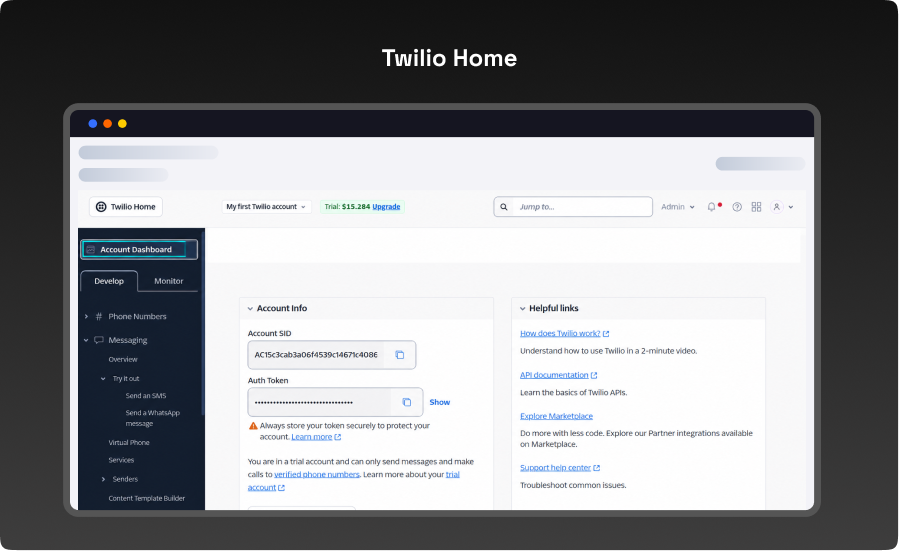
- After signing in to the Twilio Console (https://console.twilio.com), the Account Dashboard's Account Info panel provides the two credentials the module needs:
- Account SID: a long string starting with "AC...". Copy this exactly into the module's Twilio Account SID field.
- Auth Token: hidden by default; click Show to reveal it, then copy it into the module's Twilio Auth Token field.
-
Step 4 – Twilio Dashboard Overview
- Navigation: Twilio Console (console.twilio.com) > Home
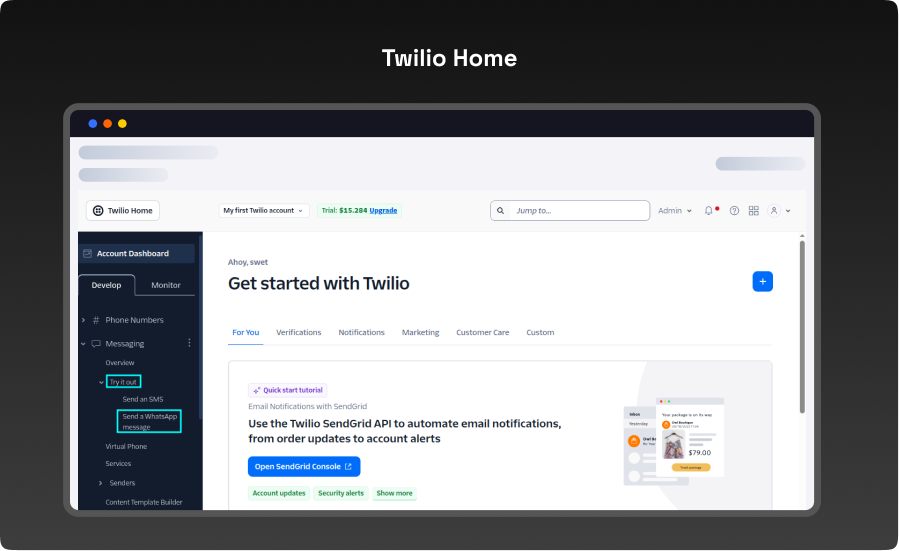
- This is the general landing page shown after logging in to Twilio. A new trial account starts with a free credit balance (shown next to "Trial" in the top bar), which is enough to send test WhatsApp messages while setting up the module. From here, the Messaging section in the left-hand menu leads to the WhatsApp Sandbox used in the next step.
-
Step 5 – Connecting to the Twilio WhatsApp Sandbox
- Navigation: Twilio Console > Messaging > Try it out > Send a WhatsApp message
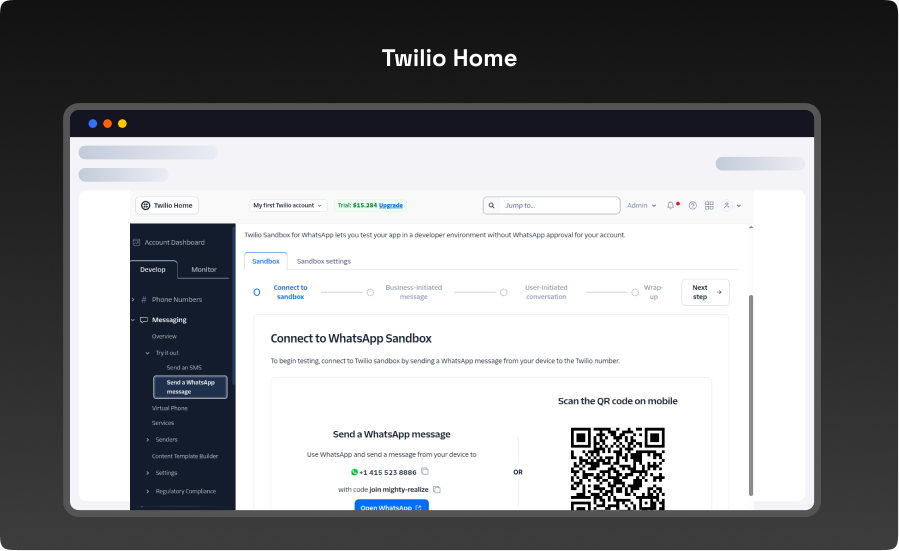
- Before Twilio can deliver WhatsApp messages to a phone during testing, that phone number must first opt in to the Sandbox, under Messaging > Try it out > Send a WhatsApp message:
- Open WhatsApp on the phone you want to test with.
- Send a WhatsApp message to the sandbox number shown on the page (for example +1 415 523 8886).
- The message text must be the join code shown on the page, in the format join (for example "join mighty-realize"), or you can scan the QR code shown instead.
-
Step 6 – Twilio Test Result - Messages Received
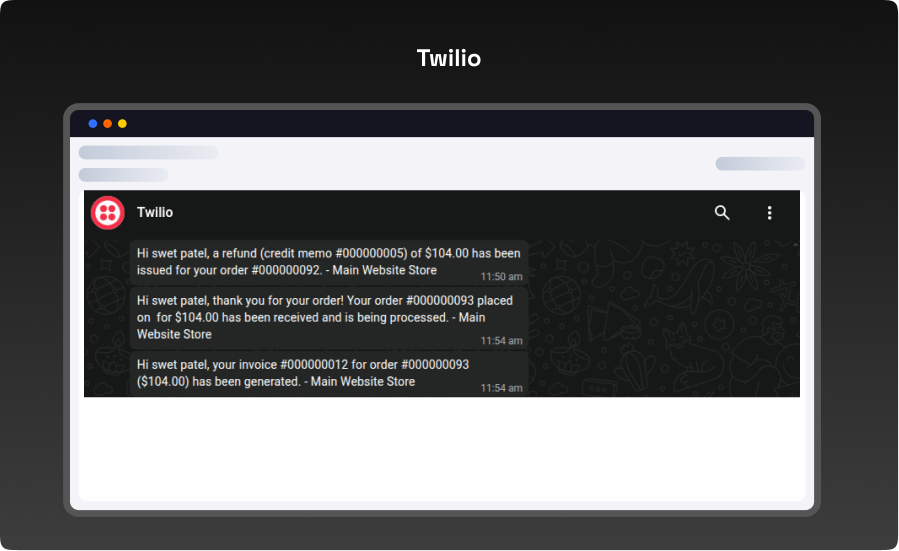
- This confirms end-to-end delivery: each message reflects the corresponding Customer Message Template with its placeholders filled in - for example the refund message shows the actual credit memo number, order number, and refund total, signed off with the store name.
-
Step 7 – General Settings - Meta WhatsApp Cloud API
- Navigation: Magento Admin > Stores > Configuration > Vdcstore Extensions > WhatsApp Order Notification > General Settings
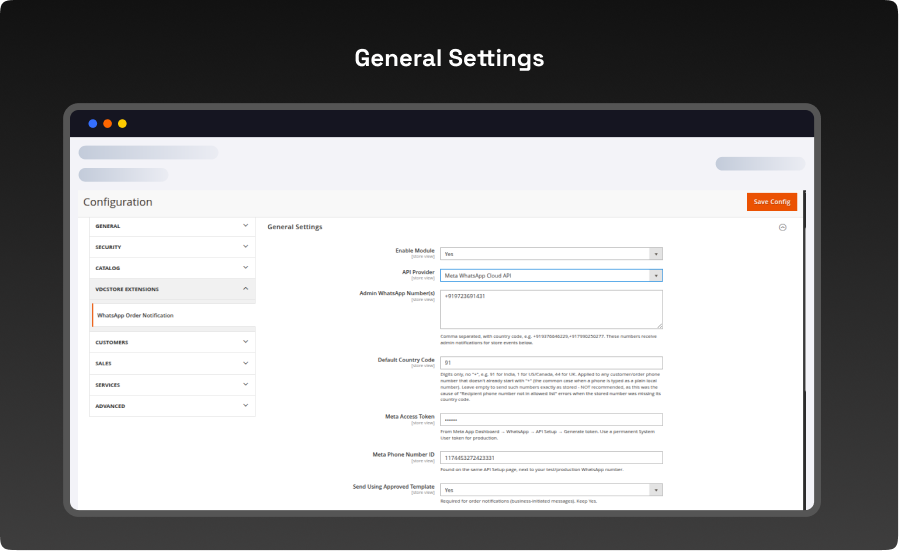
- Switching API Provider to Meta Cloud API swaps in these fields instead of the Twilio ones:
- Meta Access Token: The access token generated from the app's WhatsApp > API Setup page (shown later in this guide). Use a permanent System User token for production.
- Meta Phone Number ID: The Phone Number ID from the same API Setup page.
- Send Using Approved Template: Keep this set to Yes. Meta requires order notifications to use an approved template rather than free text.
- Enable Debug Log: Same as the Twilio version - logs requests/responses to var/log/whatsapp_notification.log.
-
Step 8 – Meta for Developers - Home Page
- Navigation: developers.facebook.com > Meta for Developers home page
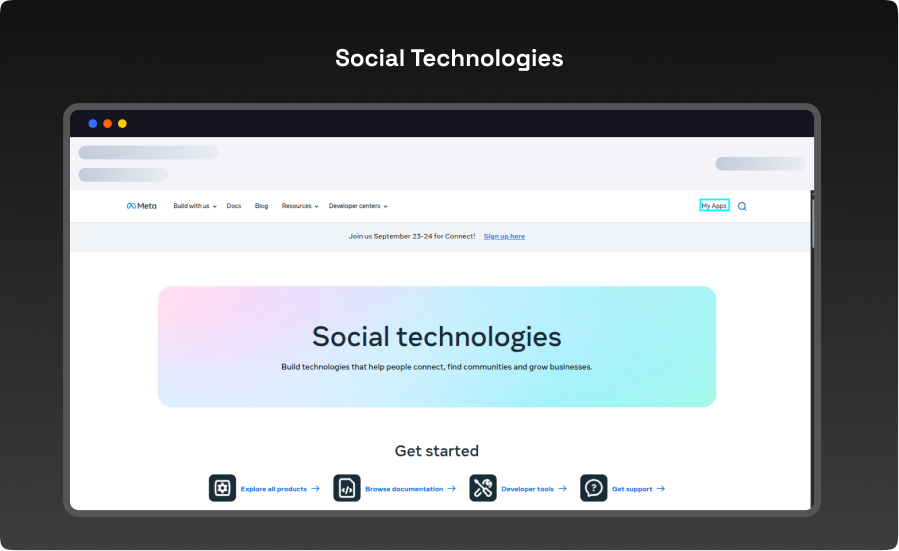
- Setting up the Meta provider starts at https://developers.facebook.com, logging in with a Facebook account and completing developer registration if this is the first app. This gives access to the App dashboard where a WhatsApp-enabled app can be created.
-
Step 9 – Meta App Created
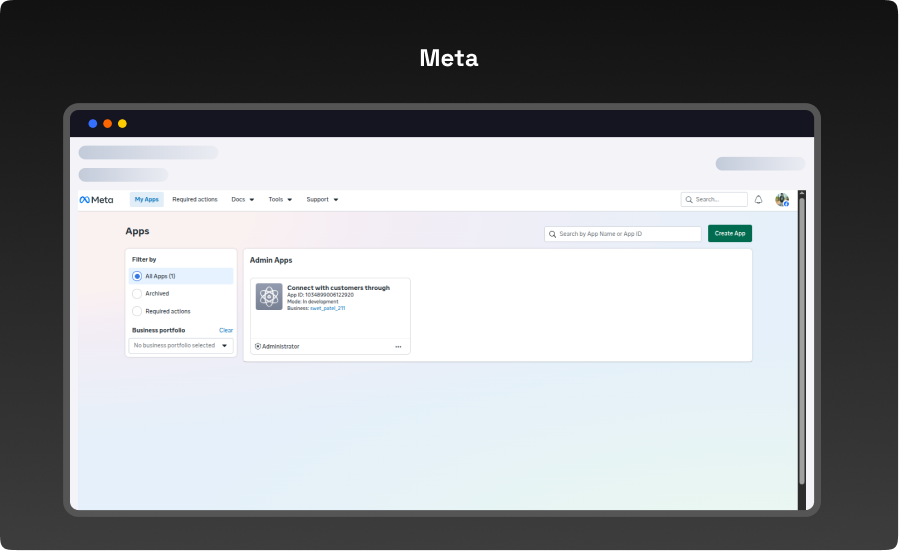
- After clicking Create App and choosing the "Business" app type, the new app appears on the My Apps screen along with its App ID and current Mode (In development, until Meta's App Review is completed to go live). Opening the app and adding the WhatsApp product from the products list is the next step.
-
Step 10 – WhatsApp API Setup - Test Number, Phone Number ID and Access Token
- Navigation: Meta App Dashboard > WhatsApp > API Setup
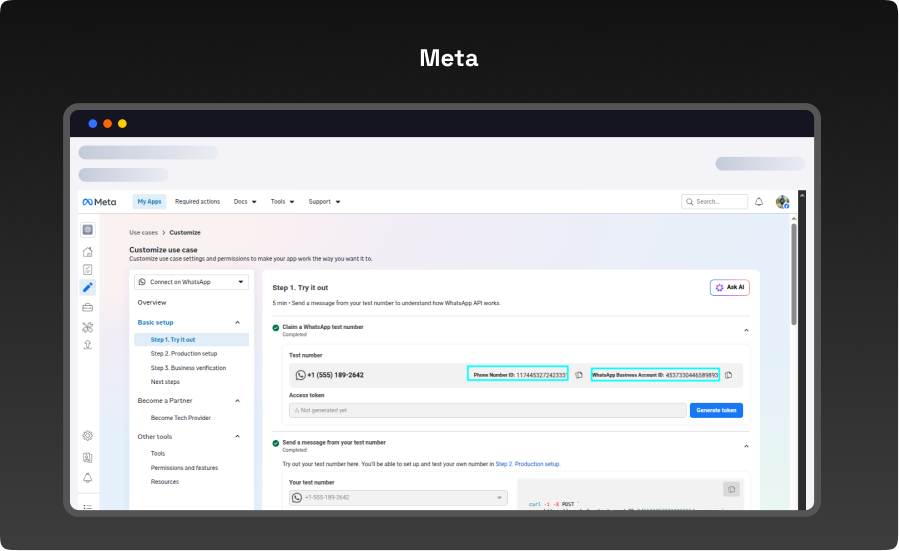
- Inside the app's WhatsApp > API Setup page, Meta automatically provides a free test phone number, along with:
- Phone Number ID: a numeric ID shown next to the test number (for example 117445327242333) - goes into the module's Meta Phone Number ID field.
- Access Token: a temporary token generated on this page (valid ~24 hours while testing; use a permanent System User token for production) - goes into the module's Meta Access Token field.
- Recipient: the phone number to test with must be added here as a test recipient before sending, or Meta will reject the request.
-
Step 11 – Sending a Test Message and Confirming Delivery
- Navigation: Meta App Dashboard > WhatsApp > API Setup (after sending a test message)
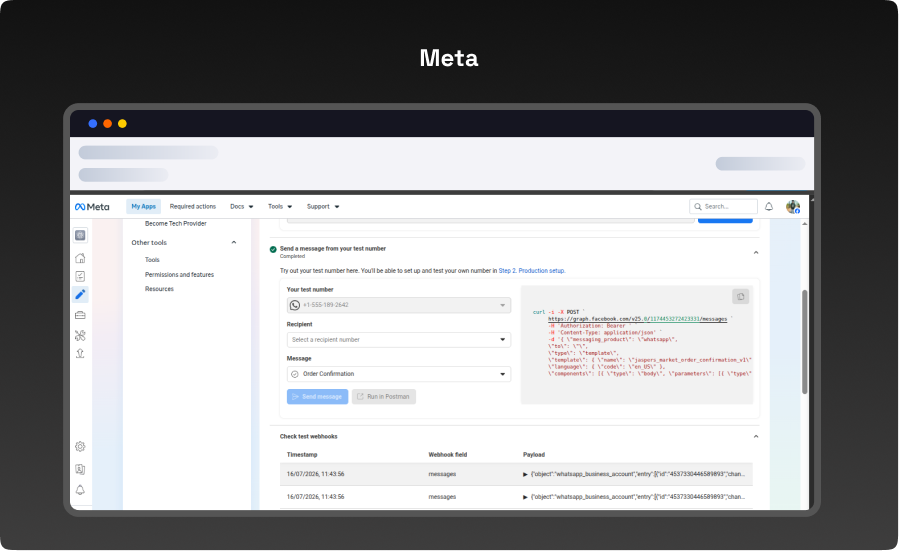
- Using the Send message button (or the sample cURL command shown on the page) sends a test template message to the added recipient number. The Step completed indicator, plus the webhook log underneath with timestamps, confirms Meta accepted and delivered the request - the same request format the module uses when a real order event fires.
-
Step 12 – SWhatsApp Manager - Message Templates
- Navigation: Meta Business Suite > WhatsApp Manager > Message Templates > Manage Templates
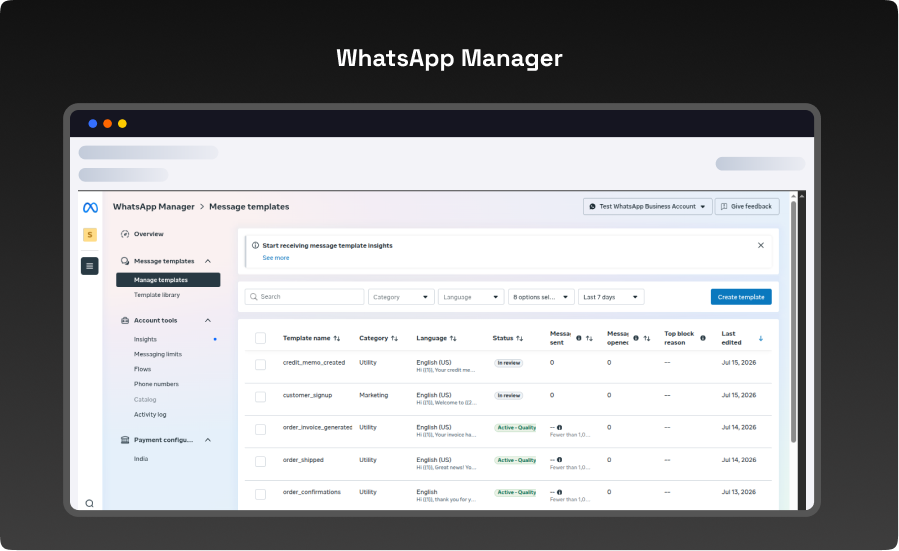
- Meta requires business-initiated messages (like order notifications) to use a pre-approved message template - free text is not allowed. One template is created per event this module sends, for example:
- order_confirmations: used for the Order Placed event.
- order_shipped: used for the Order Shipment event.
- order_invoice_generated: used for the Invoice event.
- credit_memo_created: used for the Credit Memo (refund) event.
- customer_signup: used for the Customer Signup welcome message.
- Each template must be submitted for review; its Status column shows whether it is still "In review" or has become "Active" (approved) - only Active templates can actually be sent. The exact Template Name and Language (e.g. English (US) / en_US) shown for each row must be typed exactly into that event's Meta Template Name and Meta Template Language Code fields in Magento Admin.
-
Step 13 – Meta Test Result - Messages Received
- Navigation: WhatsApp app on the test recipient's phone (Meta Cloud API test number)
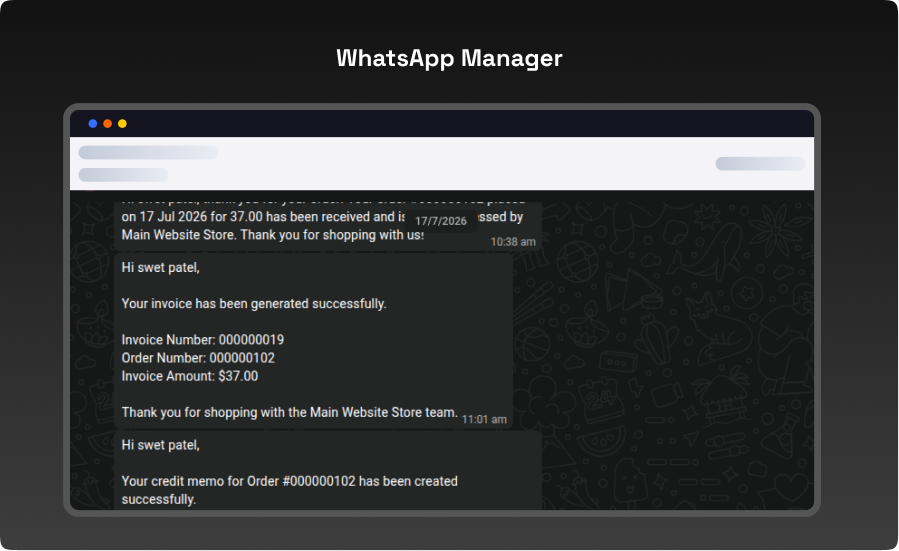
- These messages come from the Active templates created in WhatsApp Manager, with the Meta Template Parameters mapped into the template's numbered placeholders - for example the invoice message fills in the Invoice Number, Order Number, and Invoice Amount in the same order the approved template expects.
What you'll obtain with our Magento Technical Audit
With VDC Store's Magento eCommerce technical audit you'll gain expert separate in-depth analysis with an exhaustive summary of the state of your store's code grade and overall usability.

-

An organizational summary of discoveries with preferences and a brief overview
-
3rd party extensions initial review
-
An exact description of results and suggested solutions
-
Database innocence review (to secure that data is recorded precisely as planned)
-
Top preferences for your architects
-
Code quality examination (periodic reflection of your store source code)
-
Examination of possible Magento core design changes
-
Speed and execution analysis (HTTP requests, optimizations, exhale headers…)
By a technical appraisal, the client not only obtains information about the issues the store is facing but also this examination by VDC Store allows them to acquire beneficial information and concepts for setting up programs to enhance sales and conversion drivers.
Our analysis appreciates the essence of your business. We are not utilizing an automatic procedure that is used in every case. We want to make sure you end up with suggestions based on the exact condition of your store. Start the discussion about the Magento technical audit you're curious in by filling out the Contact Us form.
Why Choose the VDCStore Magento 2 Whatsapp Notification Extension
The VDCStore WhatsApp Order Notification module is a fully self-contained Magento 2 extension that connects your store directly to WhatsApp — covering order confirmations, shipment tracking, invoices, refunds, and customer welcome messages. It supports both Meta's official WhatsApp Cloud API and Twilio out of the box, with encrypted credential storage, configurable message templates, and automatic phone number normalization, all without requiring any third-party messaging middleware.
Live Demo


Explore Our Customer Reviews
Dr Zahid
 Verified
Very happy with the website service!
Very happy with the website service. Great communication, high-quality design, and timely delivery. Everything was handled professionally, and the end result exceeded our expectations. Would definitely recommend.
Ravinder Gupta
VerifiedGreat experience
Great experience working with this software company. The team is professional, responsive, and delivered exactly what was promised.
Erel Support
VerifiedExtremely satisfied
I am extremely satisfied with the website they built for us. They listened carefully to our ideas, suggested improvements, and delivered a site that perfectly represents our brand.The process was smooth,strees-free,well organized.Great attention to detail and excellent support even after launch
Anurag Kumar
VerifiedGreat experience working with this team
We had a great experience working with this team for our website. They were Professional, responsive, and clearly understood our requirements from the start. The final website looks clean and modern and works perfectly across all devices. Communication was smooth throughout the project, and everything was delivered on time. Highly recommended for anyone looking for reliable website services and extensions.
Amol Bhoyate
VerifiedReliable, Professional, and High-Quality Web Development
We had a great experience working with VDC Store for our website development needs. From the very beginning, their team was professional, responsive, and attentive to our requirements. They clearly understood our vision and delivered a modern, user-friendly website that aligns perfectly with our business goals.
Comparison


Explore Our Hyvä Theme Demos
Fashion Store
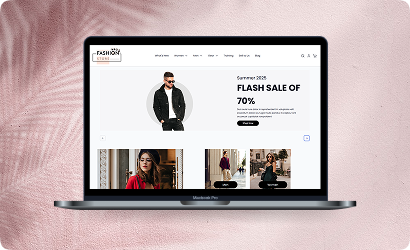
Experience lightning-fast browsing and seamless product discovery in our Fashion demo, designed for smooth navigation and instant page loads.

Jewelry Store
Experience a sleek, lightning-fast browsing experience with our Jewelry demo — optimized for smooth navigation and instant product loading. Modern design meets high performance for flawless shopping.

Furniture Store
Our Furniture demo delivers fast, responsive pages and seamless product filtering, letting users explore large collections without delay. Performance-driven design for ultimate online convenience.
Electronics Store
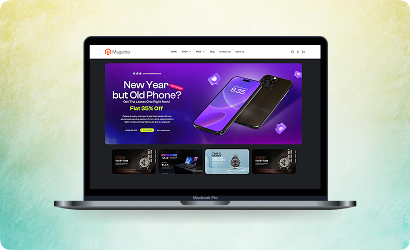
Explore the Electronics demo with blazing-fast load times and smooth interactive features, ensuring a high-speed, immersive shopping experience. Optimised for tech-savvy customers.

Fitness Store
The Fitness demo combines speed and responsiveness with effortless navigation, making it easy to browse workout gear and accessories quickly. Built for fast, engaging online fitness shopping.

Beauty Store
Enjoy instant load times and smooth interactions in our Beauty demo, designed for a seamless, high-performance shopping journey. Perfect for browsing beauty products without interruptions.

B2B Store
Our B2B demo emphasizes speed and efficiency, handling bulk catalogs and quick ordering without lag. Engineered for high-performance business-to-business operations.

Auto Store
The Auto demo offers responsive navigation and rapid product searches, making car parts and accessories easy to find. Optimized for high-speed, performance-driven shopping.

Hyvä Demo Store
Experience the Hyvä demo’s cutting-edge performance with near-instant page loads, smooth animations, and superior responsiveness. Designed for modern, lightning-fast eCommerce.
FANTASTIC AND PREMIUM CLIENTS
Trusted by







Need More Help?
Save time by starting your support request online and we'll connect you to an expert. Save time by starting your support request.